

Most laptops last 3 to 7 years, but the actual answer depends less on the calendar and more on what you use it for and which parts are wearing out. A battery can become the problem long before the processor is completely obsolete, which is why two laptops of the same age can feel completely different.
If you're reading this, there's a good chance your laptop still turns on, but something feels off. It takes too long to start. Video calls make the fan roar. The battery that once lasted through an afternoon now barely survives a coffee break. At that point, the question often arises: how long should a laptop computer last?
In Edmonton, I hear that question in homes, home offices, and small businesses all the time. The short answer helps, but it doesn't solve the decision. What matters is whether the laptop still does your actual work comfortably, whether the slowdowns are fixable, and whether one worn part is making the whole machine feel older than it really is.
Your Laptop Is Slowing Down What Does It Mean
A slow laptop doesn't automatically mean it's finished. Sometimes it means the machine is ageing normally. Sometimes it means one problem is dragging everything else down, like a car with decent engine life left but worn tires and a weak battery.
That distinction matters because people often mix up old with unusable. A laptop can be several years old and still handle email, web browsing, documents, and online banking just fine. Another laptop can be newer on paper but feel frustrating because it's clogged with startup apps, heat buildup, battery wear, or storage issues.
Slow is a symptom, not a verdict
When a laptop starts lagging, I tell people to think in layers.
- Software layer: Too many background programs, browser tabs, or security issues can make a decent laptop feel exhausted.
- Heat layer: If dust blocks airflow, the laptop may slow itself down to avoid overheating.
- Component layer: Battery wear, storage problems, or a tired cooling system can affect day-to-day use.
- Needs layer: Your work may have changed. A laptop that was fine for school notes may struggle with video meetings and multitasking.
If your machine is sluggish but you haven't done any basic cleanup yet, start there. These simple fixes to speed up a slow computer can help you tell the difference between a maintenance issue and a true end-of-life problem.
A laptop's age matters less than how well it still matches your daily tasks.
Ask a better question
Instead of asking only, "How old is this laptop?" ask these:
- Does it still do my usual tasks without constant waiting?
- Is the frustration coming from one issue, or from the whole machine?
- Would a repair or upgrade solve the actual problem?
Those questions lead to better decisions than a flat age rule. A laptop isn't milk. It doesn't expire on a specific date. It wears unevenly, and your experience depends on which part is slipping first.
The Lifespan of a Laptop Is Not One Number
A laptop can be alive on paper and frustrating in real life.
You see this all the time with older machines around Edmonton. The screen turns on, Windows loads, and the keyboard still works. Yet the laptop feels like it is always one step behind you. That gap matters because "still functioning" is not the same as "still worth relying on."
A better way to judge lifespan is to split it into two parts. Physical life means the laptop still operates at a basic level. Useful life means it still fits your actual day, whether that means email, bookkeeping, schoolwork, video calls, or heavier creative software.
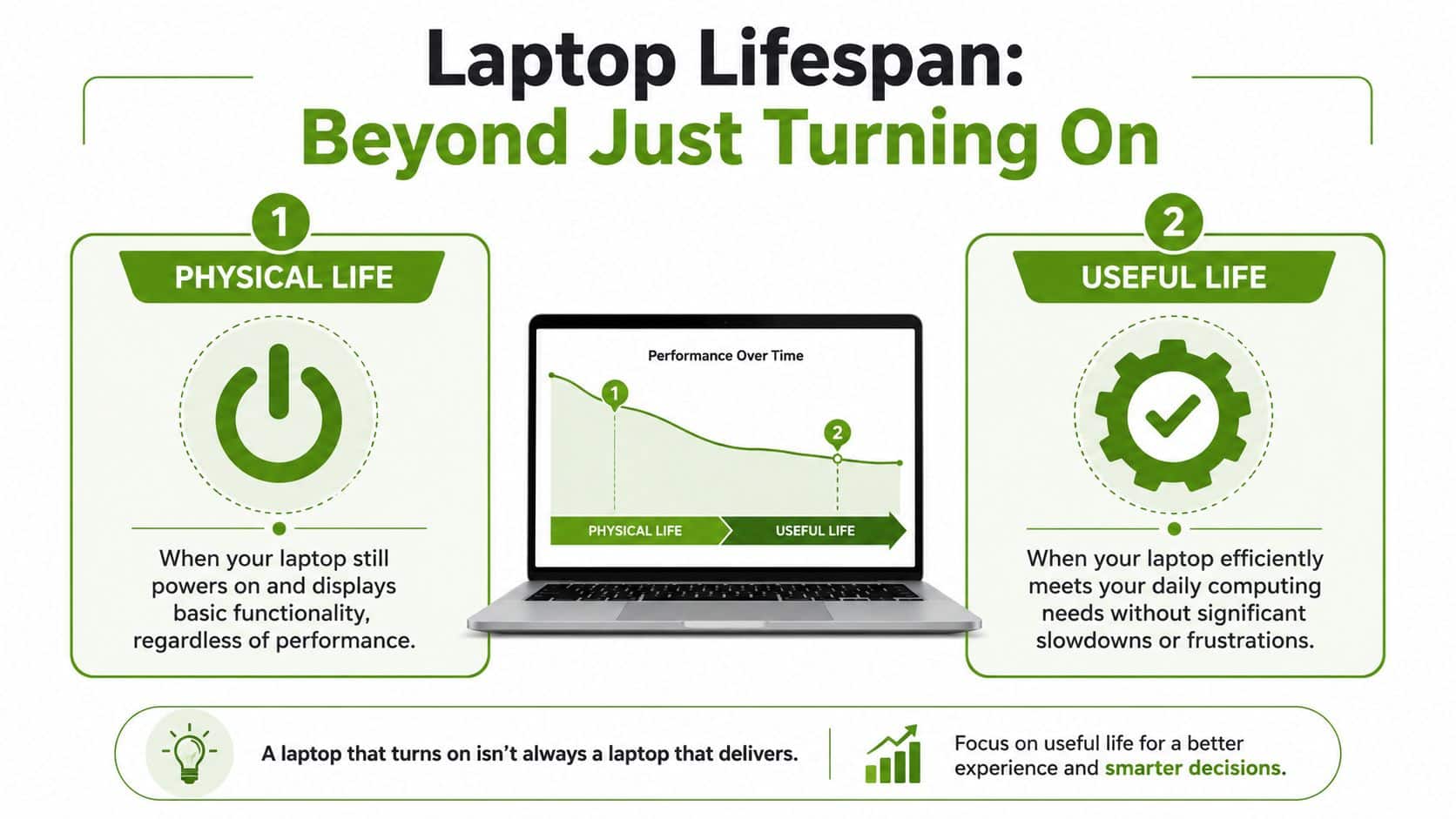
Physical life versus useful life
A car can still start with worn tires, tired brakes, and a weak battery. You could say it runs, but that does not mean it is in good shape for your daily commute. Laptops age the same way. One part of the story is whether it powers on. The other is whether it still handles your workload without constant delays, noise, or workarounds.
General lifespan ranges are still useful as a rough guide. Analysts at Itarian's laptop lifespan breakdown note that lower-cost laptops often have a shorter usable window than better-built mid-range or premium models, and heavier workloads tend to shorten that window faster than light everyday tasks.
That broad range is why a flat answer like "a laptop should last five years" often leads people in the wrong direction.
Why price tier changes the answer
The explanation is straightforward: the laptop you bought at the start affects how much room you have later.
A budget model often begins with less performance headroom, lighter cooling, and fewer upgrade options. A stronger business or premium machine usually has better materials, better thermals, and more breathing room as software gets heavier over time. It is a bit like buying a small car with a tiny engine versus a half-ton truck. Both can get you around town, but one will feel strained much sooner if you keep adding weight.
| Laptop type | What lifespan usually feels like |
|---|---|
| Budget model | Handles basics at first, then starts feeling cramped sooner as apps and browser workloads grow |
| Mid-range model | Stays comfortable longer for school, office work, and everyday multitasking |
| High-end model | Usually holds up better over time because it starts with more performance and better build quality |
Battery condition also changes the answer faster than many people expect. If your laptop still suits your tasks but unplugged time has fallen off sharply, a battery issue may be shortening useful life before the rest of the machine is worn out. These practical ways to extend laptop battery life can help you slow that decline.
Turning on is not the same as keeping up
Some laptops reach an awkward middle stage. They boot, browse, and save files, but every normal task takes more patience than it should. That usually means the laptop still has physical life left, while its useful life is shrinking.
For repair decisions, that distinction helps a lot. If one replaceable part is dragging the whole system down, repair may be the smart call. If several parts are aging at once and the laptop no longer matches your work, replacement starts to make more sense. Even old hardware can remain interesting from a computer history perspective, as shown in SES Computers' Intel Pentium II post, but nostalgia and day-to-day practicality are two different things.
For many, the right question is not "How old is my laptop?" It is "Which part of its life am I talking about?"
How Key Laptop Components Age Over Time
A laptop ages like a car. The engine, battery, tires, and brakes don't all wear out on the same day. The same is true inside your computer. One part can fade early while the rest still has years left.
That matters because a single weak component can make the whole laptop feel tired. If you know which part is failing, you can judge whether a repair makes sense or whether the machine is reaching the end as a whole.
The battery is often first
The battery is the easiest example. It commonly loses noticeable capacity after about 300 to 500 full charge cycles or roughly 2 to 4 years of typical use, based on Laptop Outlet's explanation of battery lifespan and wear.
People often think of battery wear as just an unplugged-runtime issue. It can be more than that. A worn battery can contribute to performance throttling and extra internal heat, which puts stress on the rest of the system. If you'd like to reduce that wear, these ways to extend laptop battery life are a good place to start.
Other parts age differently
The processor and graphics hardware usually don't "wear out" in the same obvious way a battery does. More often, they become less suitable for current software. That's why an older office laptop may still feel acceptable for web work, while an older gaming laptop may feel outdated even though no single chip has technically failed.
Storage, screens, hinges, keyboards, and cooling systems each show age in their own way:
- Storage drive: The laptop may boot slowly, freeze during file access, or behave unpredictably.
- Display panel: You may notice dimming, dead pixels, flicker, or colour changes over time.
- Keyboard and trackpad: Keys may stop responding cleanly, or the click feel gets inconsistent.
- Fans and cooling system: More noise, more heat, and more performance slowdowns under load.
- Hinges and chassis: The screen may wobble, the lid may open unevenly, or the case may flex more than before.
For a fun reminder of how dramatically computer hardware has changed over the years, SES Computers' Intel Pentium II post is a nice look back. It also helps explain why "still running" and "still practical" have never meant the same thing in computing.
A quick component checklist
| Component | Typical lifespan | Common failure signs |
|---|---|---|
| Battery | 2 to 4 years in typical use, often after 300 to 500 full charge cycles | Short runtime, sudden shutdowns, charging problems, heat |
| Processor and graphics | Varies by workload | Sluggish performance with newer apps, poor gaming or editing experience |
| Storage drive | Varies | Long startup times, freezes, file errors, noisy behaviour in older mechanical drives |
| Display | Varies, but aging signs can appear later in life | Dead pixels, dimness, flicker, colour shift |
| Keyboard and hinges | Varies by build quality and handling | Missed keystrokes, broken keys, loose or stiff hinge movement |
If one replaceable part is failing but the rest of the laptop still suits your work, the machine may be worth repairing.
Why Your Usage Matters Most for Laptop Longevity
Two people can buy laptops on the same day, spend roughly the same amount, and have completely different experiences a few years later. Usage explains most of that difference.

The light home user
This person checks email, shops online, watches YouTube, pays bills, and writes the occasional document. Their laptop spends more time idle than stressed.
For this kind of use, the machine often ages gently. The biggest risks are battery wear, cluttered software, and accidental damage rather than raw performance limits. If the laptop was decent to begin with, a lighter workload gives it a better chance of staying comfortable for years.
The business professional
This user lives in Outlook, Teams or Zoom, browser tabs, spreadsheets, PDFs, and cloud apps. They open and close the lid constantly, carry the laptop to meetings, and rely on it every workday.
Business-class laptops tend to hold up better here. A business laptop often has a productive lifespan of 4 to 6 years, while a consumer laptop at a similar price may struggle after 2 to 3 years because of differences in durability, repairability, and manufacturer support for drivers and firmware, according to Go Leading IT's comparison of business and consumer laptop lifespan.
That doesn't mean consumer laptops are bad. It means build quality and serviceability matter a lot once a device becomes a daily work tool instead of a casual household screen.
The power user or gamer
This laptop spends its life under pressure. Think modern games, large photo libraries, coding projects, design apps, or heavy multitasking with lots of browser tabs and external displays.
Here, useful life usually ends because demands rise faster. The laptop may still work, but your software expects more from the graphics chip, more cooling, and more sustained performance. That's why a machine can feel old sooner in this category even when the hardware itself hasn't broken.
The harder you push a laptop, the less useful it tends to feel over time, even if the physical machine is still intact.
The same age can mean different things
If your neighbour's six-year-old laptop feels fine and yours doesn't, that isn't necessarily unfair or unusual. You may be asking your machine to do more, carrying it more often, generating more heat, or using a class of laptop that wasn't built for constant work in the first place.
Clear Signs It Is Time for a Change
Some laptops don't fail dramatically. They just start asking for more patience than they're worth. That's usually when people stop wondering in theory and start deciding in practice.
Everyday warning signs
A few examples come up again and again.
- It takes forever to start up: This often points to software clutter, storage trouble, or a generally ageing system that no longer handles modern startup loads smoothly.
- The fan is loud during simple tasks: Excess heat, dust buildup, or an overworked cooling system may be forcing the laptop to slow itself down.
- The battery dies almost immediately off the charger: Battery wear is often the clearest sign that one major component has reached the end of its comfortable life.
- The screen has distracting flaws: Dead pixels, dim areas, flicker, or yellowing can make a laptop unpleasant even if performance is still acceptable.
- Basic multitasking feels like a struggle: If ordinary office work causes constant pauses, your useful life may be ending even though the laptop still turns on.
When the laptop still works but no longer fits the job
Gaming laptops are a good example of workload-driven obsolescence. They often become obsolete faster than standard laptops because the hardware can't keep up with newer game demands, even while remaining physically functional. Business Insider also notes that physical degradation such as dead pixels can become more common after about five years, with some screens yellowing in 8 to 10 years, as described in Business Insider's guide to how long laptops last.
That same idea applies outside gaming. A laptop used for newer design tools, heavier spreadsheets, or constant video calls can feel "done" before it fails.
A simple gut-check
Ask yourself these questions:
- Am I waiting on the laptop every day?
- Am I avoiding tasks because the machine struggles with them?
- Has one issue turned into several at once?
- Would I trust this laptop for an important workday or trip?
If your laptop creates friction every day, replacement or repair isn't about luxury. It's about reliability.
A laptop doesn't need to be dead to be at the end of its useful life. Sometimes the warning sign is that you no longer trust it.
Smart Maintenance to Extend Your Laptop's Life
You can't stop ageing, but you can slow unnecessary wear. Most laptops last longer when owners treat heat, charging habits, and physical handling as maintenance issues instead of afterthoughts.
Focus on heat, dust, and handling
Heat is hard on batteries and the rest of the internals. Keep vents clear, avoid using the laptop on soft bedding or a couch cushion, and clean visible dust from intake and exhaust areas carefully. If the machine always feels hot, it's worth having the cooling system checked before heat starts affecting performance every day.
Physical protection matters too. A padded bag reduces bumps, pressure on the screen, and hinge strain during travel. If you're comparing carry options, this Urban Totes laptop work bag review gives a practical look at what to look for in a bag that protects a laptop instead of just carrying it.
Keep the software side tidy
A healthy laptop isn't only about hardware.
- Remove junk you don't use: Uninstall old utilities, trial software, and startup apps that eat resources.
- Stay current on updates: Security and stability updates help keep the system usable and safe.
- Watch browser habits: Too many tabs and extensions can make an otherwise decent laptop seem far worse than it is.
- Scan for malware if behaviour changes suddenly: A laptop that becomes oddly slow for no clear reason may have a software problem, not an age problem.
Battery habits that help
Battery wear is normal, but you can be gentler with it.
- Avoid constant full drains: Running to empty again and again tends to add more wear.
- Reduce unnecessary heat while charging: Charging in a hot environment is harder on battery health.
- Notice swelling, sudden drops, or charger sensitivity: Those signs mean the battery deserves attention sooner rather than later.
Small habits don't make a laptop immortal. They do make it far more likely that you'll get a smoother, longer useful life from the parts you already paid for.
Repair Replace or Upgrade Your Best Options in Edmonton
When a laptop starts showing its age, there are really three paths: repair it, upgrade it, or replace it. The smart choice depends on whether the problem is isolated or structural.
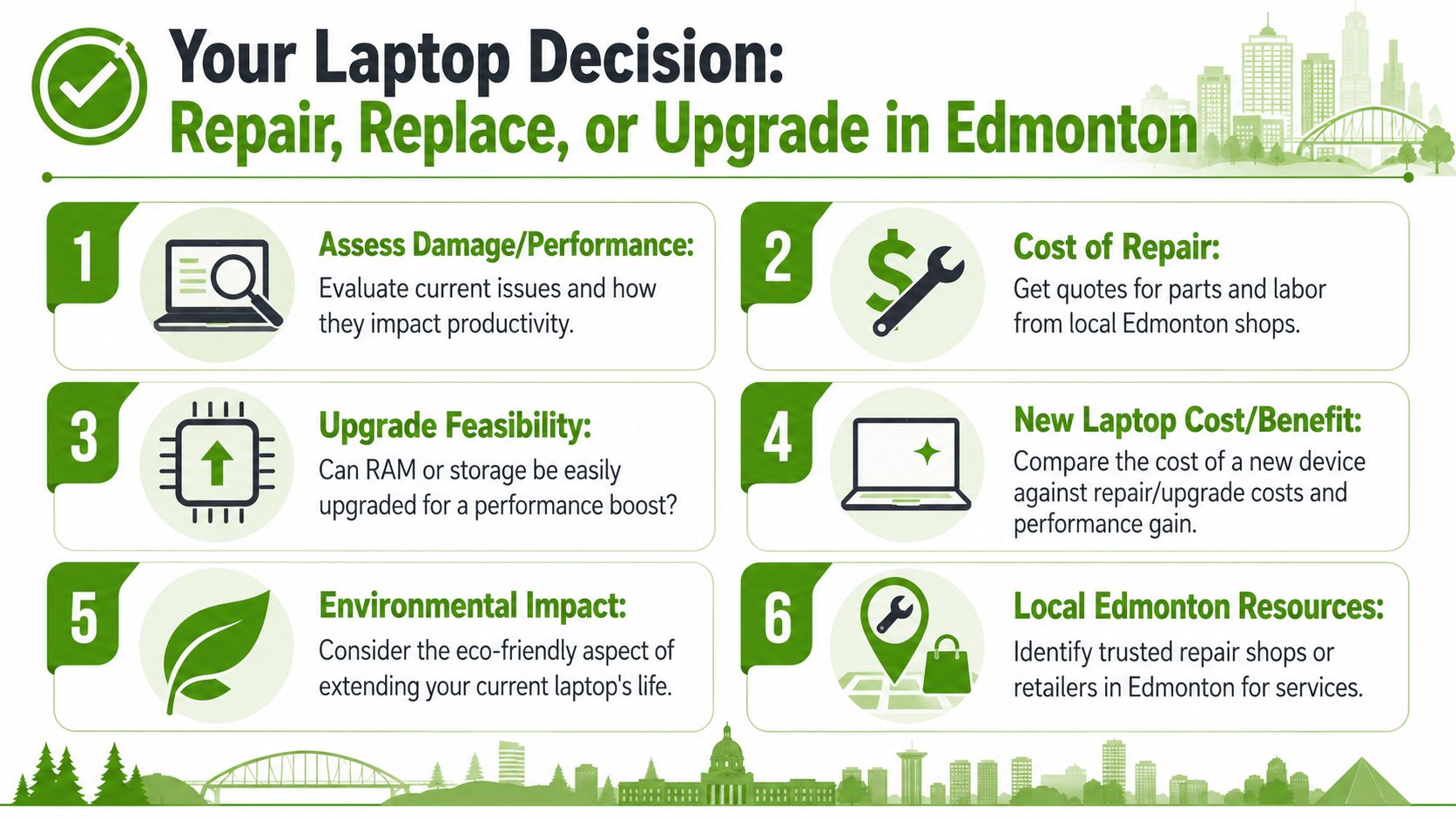
When repair makes sense
Repair is often reasonable when the laptop still suits your work and one part is clearly the issue. Common examples include a failing battery, damaged screen, unhealthy charging port, or a storage problem that doesn't reflect the condition of the whole machine.
Warranty status matters here too. Before paying out of pocket, it's worth reviewing the basics of understanding HP laptop warranties if your machine is from HP, because warranty coverage can change the decision quickly.
When upgrading is the better move
An upgrade can be the sweet spot when the laptop is otherwise sound but feels constrained. Extra memory or better storage can sometimes make a machine feel more responsive for ordinary work, provided the model allows it and the rest of the system is still healthy.
For Edmonton homes and offices that want someone to diagnose that on-site, computer service and repair support can help determine whether the slowdown is repairable, upgradeable, or the sign of a laptop that's reached the end of practical value. That's especially useful when you don't want to drag a failing machine across the city just to get an answer.
When replacement is the practical answer
Replacement usually makes sense when several things are going wrong at once. For example: weak battery, poor performance, unreliable charging, screen issues, and no sensible upgrade path. At that point, putting more money into the old machine often buys only a little more time and a lot more uncertainty.
A good decision isn't about squeezing every last month out of a laptop. It's about buying yourself reliable, comfortable computing with the fewest surprises.
If your laptop is slowing down and you're not sure whether to repair it, upgrade it, or replace it, Nerds 2 You Edmonton offers on-site help for homes and businesses in the Edmonton area. A technician can assess the problem at your home or office, explain what part is failing, and help you choose the most practical next step without the hassle of taking your computer to a shop.
Contact Nerds 2 You for quality professional service
Experience the difference with our dedicated team of experts ready to assist you. Whether you need immediate support or have questions about our services, we are here to help. Reach out today and let us provide you with the reliable service you deserve. Your satisfaction is our priority and we guarantee a prompt response to all inquiries.
Discover more from Nerds 2 You
Subscribe to get the latest posts sent to your email.