
Most advice on how to set up wifi extender starts with the wrong assumption. It assumes an extender is the right answer.
Sometimes it is. Often it isn't.
In Edmonton homes and small offices, weak Wi-Fi usually comes down to one of three problems: the router is in the wrong part of the building, the signal has to push through too many walls or floors, or the layout needs another access point instead of a device that repeats a weak signal. If you're on a tight budget, an extender can help. If you need stable video calls, better roaming, and less fiddling, there are better options.
Is a Wi-Fi Extender Really Your Best Solution
Usually, no.
An extender is the cheapest way to patch a weak area, but it is also the option that fails most often in the field. I install them when the budget is tight, the coverage gap is small, and the client understands the trade-off. If the main signal reaching the extender is weak, unstable, or already slow, the extender repeats those problems.
That matters in Edmonton homes. Thick walls, finished basements, garage conversions, and routers stuffed into utility corners create plenty of Wi-Fi trouble. Statistics Canada’s reporting on Canadian internet use has shown how common home connectivity issues are, but the number itself matters less than the pattern I see on service calls: people buy an extender first because it is cheap, then spend weeks fighting placement, dropouts, and speed loss.
The order I’d consider solutions
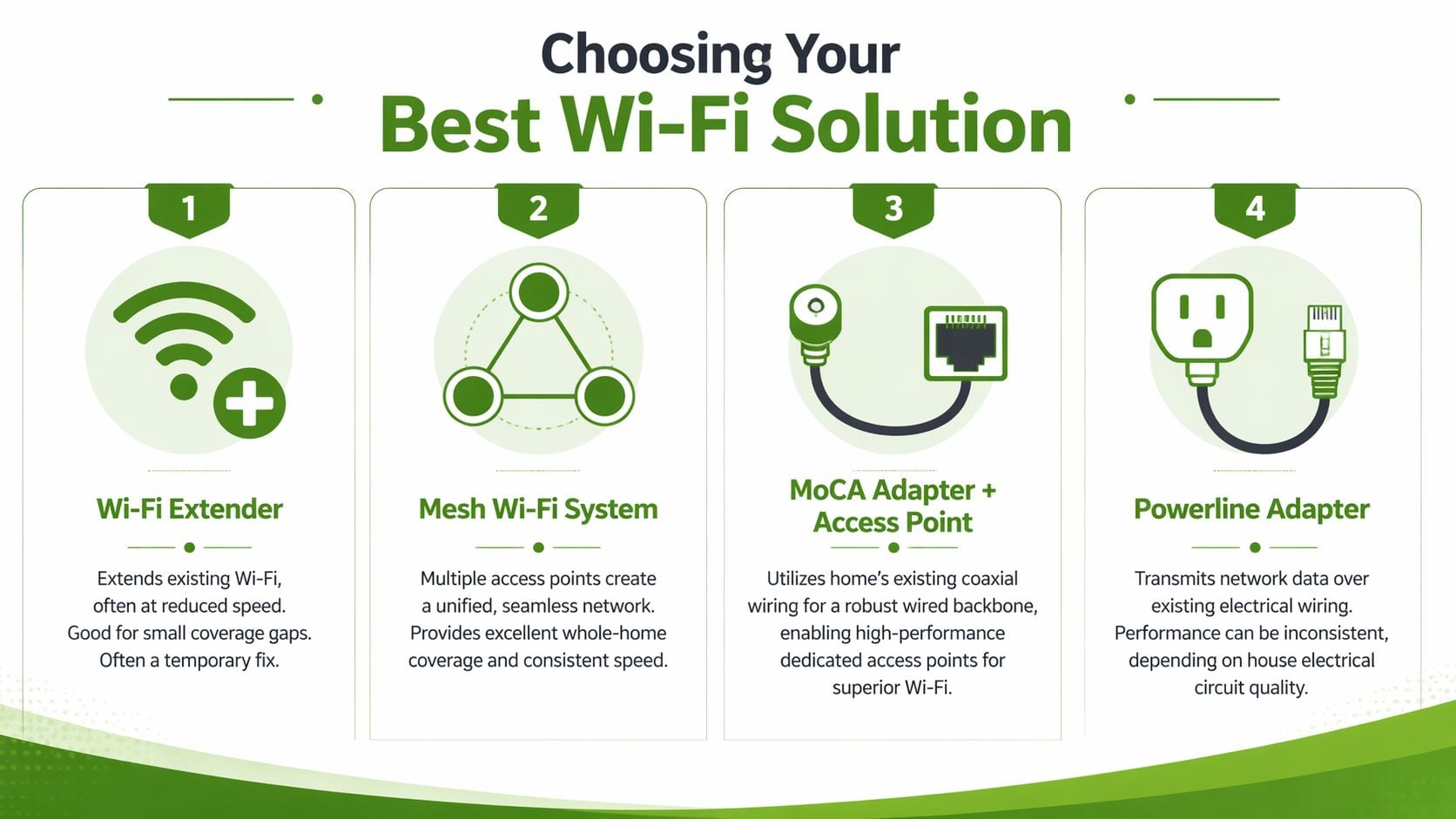
This is the order I use for homes and small offices that need better coverage:
| Solution | Best use | What works well | What usually goes wrong |
|---|---|---|---|
| Wired access point | Homes and offices that need dependable coverage | Fastest, most stable coverage with full backhaul to the network | Higher install cost and possible cable runs through finished space |
| MoCA plus access point | Homes with usable coax already in place | Near-wired performance without opening walls in many cases | Splitters, old coax runs, or missing outlets can limit results |
| Powerline plus access point | Budget-conscious installs where Ethernet is not practical | Can work well enough for browsing, streaming, and light office use | Performance changes a lot based on panel layout, noise, and circuit quality |
| Mesh system | Larger homes that need easier whole-home coverage | Better roaming and simpler management than a basic extender | Wireless backhaul still loses performance through difficult layouts |
| Wi-Fi extender | One room, one corner, or a short-term fix | Lowest upfront cost | Placement-sensitive, slower under load, and often frustrating to fine-tune |
For office-focused terminology, Wifi Extender Vs Repeater Choosing The Right Office Network Solution gives a useful outside comparison. Vendors blur the line between extender, repeater, booster, and mesh node, and that confusion leads to bad purchases.
My professional recommendation
For a typical installation, I would choose a wired access point first. If Ethernet is not realistic, I look at MoCA. If coax is not available, I test whether powerline is even worth trying. Mesh comes next when the layout needs broader coverage and the budget allows for it.
The extender sits at the bottom of that list for a reason.
Extenders can be acceptable in rentals, older homes where running cable is not practical, or single-room problem areas where no one expects perfect roaming or top speed. They are not my first pick for work-from-home setups, gaming, multiple video calls, or homes with dead zones on more than one floor.
One more point gets missed all the time. Slow internet service and weak in-home Wi-Fi are different problems. If the incoming connection is the bottleneck, adding Wi-Fi gear will not fix it. Before buying hardware, compare cheap home internet plans in Edmonton and make sure the plan itself is not the issue.
If an extender is still the only practical option, it can help. It just needs to be set up with realistic expectations and much better placement than the box usually suggests.
Your First Steps for a Successful Extender Setup
If an extender is the only realistic option, the setup stage decides whether it will be tolerable or frustrating. I see the same mistake over and over in Edmonton homes and small offices. The device gets plugged in at the far end of the problem area, the quick setup gets rushed, and the connection is weak before anyone has even started testing.
Start the extender close to the router for the initial pairing. A nearby outlet makes the first connection easier, reduces setup failures, and gives you a clean baseline before you move the unit to its working location. Do not judge final coverage yet. At this stage, the job is to get the extender joined to the correct network, updated, and passing traffic properly.
Two ways to pair it
Most extenders offer two setup methods, and they are not equal.
-
WPS button pairing
Press the router’s WPS button, then press the extender’s WPS button within the window allowed by the manufacturer. This is the fast option. It can work fine for a basic home setup, but it gives you less visibility into band selection, SSID naming, and security settings. -
Manual browser setup
Connect your phone or laptop to the extender’s default Wi-Fi name, open the setup page listed on the label or quick-start card, choose your main network, and enter the password yourself. On many models, this is the cleaner method because you can confirm exactly which network you are extending, check whether the extender is cloning or renaming the SSID, and apply firmware updates before the device goes into service.
Manual setup is usually the better choice. It takes a few extra minutes, but it gives you more control and fewer surprises later. Firmware updates are worth doing right away because vendors regularly fix stability bugs, roaming issues, and compatibility problems in newer releases. If WPS works on your gear and you just need a quick temporary fix, use it. If you want the best shot at a stable setup, use the browser method.
A short setup checklist
Before you move the extender to its final location, check these basics:
- Confirm the main network name: Make sure the extender joined your actual home Wi-Fi, not a guest network or a similarly named neighbour network.
- Install firmware updates: Apply any available update before final placement.
- Test internet access: Open a few sites and run a quick speed test from a connected device.
- Check both bands if available: Some extenders handle 2.4 GHz and 5 GHz differently. Verify that both are working if your model supports them.
- Name the extended network clearly: If the extender lets you choose a separate SSID, use a name you can identify easily during testing.
One practical point. If the extender already feels unreliable while sitting near the router, placement will not save it later. That usually means a bad fit, old hardware, or a setup issue that needs to be fixed before you spend time chasing signal problems around the house.
The Single Most Important Factor Placement
Placement decides whether an extender is tolerable or a waste of time.
I say that bluntly because I see the same mistake on Edmonton service calls all the time. Someone puts the extender in the worst room in the house because that is where they want better Wi-Fi. The result is predictable. The extender grabs a weak, noisy signal and repeats that same weak, noisy signal.
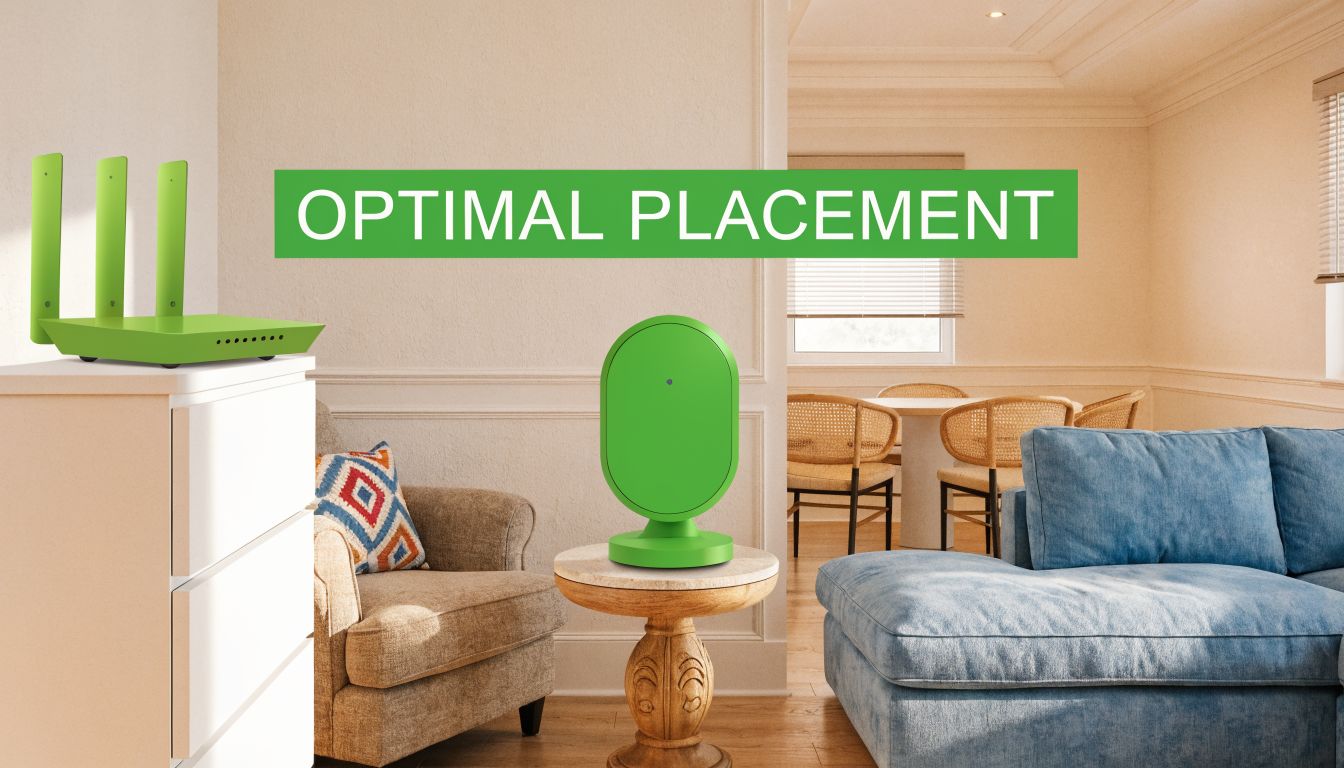
A Wi-Fi extender should sit at the edge of good coverage, not inside bad coverage. In plain terms, put it in the last spot where your phone or laptop still has a stable connection to the main router. If the extender has signal lights, aim for the range the manufacturer marks as good or strong, not barely connected.
The common "halfway" advice is a decent starting point, but only a starting point. Halfway works in some homes. It fails in plenty of others because houses are not open boxes. Furnaces, brick fireplaces, metal ducting, bathrooms, and floor layouts all change how Wi-Fi moves. In a two-storey house, the right spot is often near the stairs or an open hallway. In a bungalow with a finished basement, it may be one floor up from where people first try to place it.
One job comes to mind because it shows the trade-off clearly. The client wanted to fix a main-floor dead zone from an upstairs modem. An extender would have worked after enough fiddling, but it still would have cut speed and added roaming annoyances. We used MoCA instead and installed a proper access point on the main floor. Better feed, better coverage, fewer callbacks. That is the hierarchy I recommend whenever the house allows it. Wired access point first. MoCA or powerline if running cable is unrealistic. Mesh after that. Extender last.
If you are extending Wi-Fi anyway, test placement properly instead of guessing. A phone app such as WiFiman helps, but even a basic speed test and a few walkthroughs are enough to find a usable spot.
Use this process:
- Check the signal beside the router first: That gives you a baseline for what strong looks like on your device.
- Walk toward the problem area slowly: Watch where the connection starts to drop from reliable to inconsistent.
- Place the extender before that drop gets severe: You want a location with a healthy backhaul to the router.
- Test in the room that matters: The extender connecting successfully is not the goal. Stable internet where you work, stream, or take calls is the goal.
- Try more than one outlet: In apartments and older homes, moving a few metres can change results because of walls, appliances, and interference from nearby networks.
A practical rule I give clients is simple. If video calls freeze in the extender's location before the extender is installed, that is usually the wrong location.
Placement also depends on what the network is for. If the extender is feeding a smart TV in one room, you can bias the location toward that room. If it is supporting work devices, printers, or a guest Wi-Fi hotspot setup for visitors and customers, be less aggressive. Prioritize stability over squeezing out a little more reach.
Do not hide the extender behind a couch, inside a cabinet, or beside a large TV. Keep it in the open, off the floor when possible, and away from microwaves, cordless phone bases, and thick masonry. Small placement changes matter more than brand labels and marketing claims.
Configuring Network and Security Settings
Placement gets the extender heard. Settings decide whether devices will use it properly.
This is also where a lot of extender setups start to show their limits. The hardware may connect fine, but if the router and extender are configured differently, phones cling to the wrong access point, printers disappear, and smart home gear starts behaving like it has a mind of its own.
The biggest problem is usually a mismatch in security or naming. In the field, I see trouble when a router is using one security mode and the extender is using another, especially in mixed WPA2 and WPA3 environments. Some devices handle that transition well. Older printers, budget smart plugs, and certain laptops do not. If stability matters more than squeezing out every new feature, matching the extender to the router’s working security mode is usually the safer call.
Same network name or different one
There is no universal right answer.
Using the same SSID and password keeps things simpler for day-to-day use. Many devices will reconnect without any input from you. The catch is that some phones, tablets, and laptops stay attached to a weak signal longer than they should, even when the extender is closer.
Using a different SSID, like “Upstairs” or “Office,” gives you more control. You can see exactly which signal a device is using and force a problem device onto the better connection. The downside is that you have to switch networks manually as you move.
Here is the practical trade-off:
| Choice | Better for | Trade-off |
|---|---|---|
| Same SSID | Simpler everyday use | Some devices roam poorly |
| Different SSID | Testing and troubleshooting | More manual switching on phones and tablets |
If this is a home with a few devices, same-name networks are usually fine to start with. If it is an older home, a busy apartment, or a small office with printers and IoT gear, separate names often save time because you can tell what is happening.
What must match
Set these as close to the main router as the extender allows:
- Security protocol: If the router is stable on WPA2-Personal, do not set the extender differently unless every device on the network supports the change.
- Password: Keep it the same unless you have a clear reason to separate the networks.
- Band settings: Some older devices only work properly on 2.4 GHz, and some extenders handle band steering poorly.
- Firmware: Update the extender if the manufacturer has released fixes for compatibility or stability problems.
For business use, be careful with guest access. An extender is a weak way to separate staff devices, visitor devices, and smart equipment. If you need proper segmentation, a dedicated guest Wi-Fi hotspot setup for visitors and customers is cleaner and easier to manage than trying to force business rules onto a cheap repeater.
A practical approach
For homes, start with the settings that are least likely to cause drama. Match the router’s working security mode, use a simple password, and test whether same or separate SSIDs behave better with your actual devices.
For small offices, I am more cautious. If the network supports staff laptops, phones, printers, payment terminals, or cameras, consistency matters more than convenience. An extender can fill a dead spot, but it can also add one more point of failure. That is why I treat extender setup as damage control, not a best-in-class Wi-Fi design.
Troubleshooting Common Wi-Fi Extender Headaches
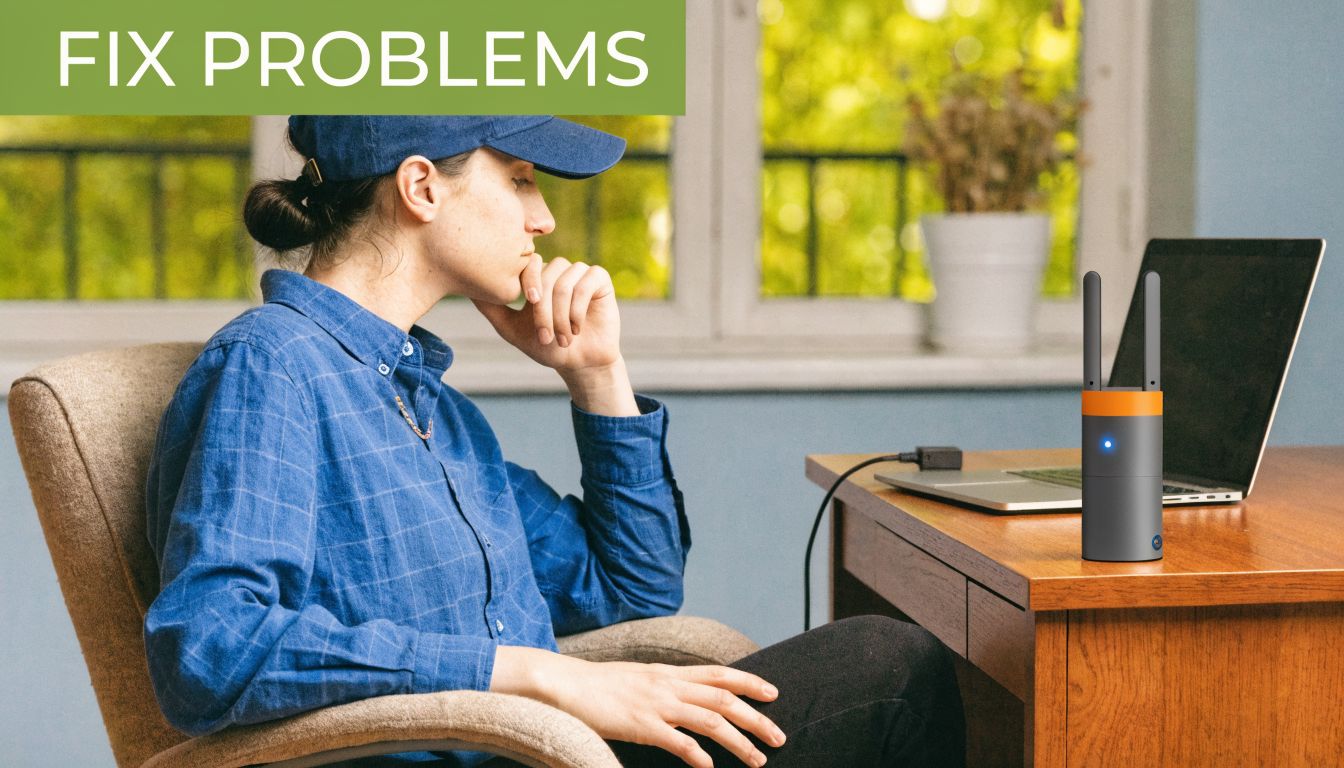
A Wi-Fi extender usually fails in boring, predictable ways. Signal bars improve, but Zoom still stutters, Netflix drops to low resolution, and the back bedroom still feels like the network’s problem child.
That pattern matters because it points to the actual issue. The extender is often working. The design is the weak point.
If the connection looks strong but feels slow
Start by testing close to the extender, then in the problem room. If both results are poor, the extender may be the bottleneck.
Common causes include:
- The extender is still too far from the router: A repeater cannot pass along speed it never received well in the first place.
- The hardware is too weak for the job: Older or cheaper extenders often fall apart once several devices connect or when someone starts a video call.
- Local interference: Microwaves, cordless devices, metal shelving, concrete walls, and crowded neighbouring networks can all cut real-world performance.
- The wrong expectation: An extender can increase coverage, but it often reduces throughput and adds latency at the same time.
If you need stable speed for work, cameras, gaming, or anything time-sensitive, this is the point where I usually tell people to stop trying to squeeze enterprise behaviour out of a plug-in repeater.
If devices keep dropping off
Intermittent disconnects usually come from roaming issues, saved credentials, or a flaky extender radio.
Work through these in order:
-
Restart the router and extender
Temporary lockups are common, especially on lower-end models. -
Check which Wi-Fi point the device joined
Phones, tablets, and laptops often hang onto a weak router connection instead of switching cleanly. -
Forget the network and reconnect
This clears old passwords, old security settings, and bad saved profiles. -
Test one device that always fails
If one older printer or tablet keeps dropping while newer devices stay connected, the problem may be compatibility rather than coverage. -
Reduce the extender’s workload
If smart plugs, cameras, TVs, and phones are all piled onto the extender, move some devices back to the main router if possible.
One flaky device is annoying. Several flaky devices usually means the extender setup is past its practical limit.
If you can’t open the extender settings page
This usually happens after the initial setup, when the extender stops using the address you first logged into, or your computer automatically reconnects to the main router instead.
Connect to the extender directly if it still has its own SSID. If it does not, check your router’s client list to find the extender’s current IP address. The manufacturer app can also save time. If none of that works, reset it and set it up again. I find it best to do that quickly because chasing a half-broken config can waste an hour fast.
If the same problems keep coming back
Repeated fixes are a sign that the network needs a better layout, not more patience. At that stage, a proper network setup and troubleshooting service is usually a better call than buying a second extender and hoping two weak links will act like one good access point.
When You Need a Better Wi-Fi Solution in Edmonton
A Wi-Fi extender can work. If you place it properly, configure it carefully, and keep your expectations realistic, it can patch a weak area for not much money.
But there’s a ceiling on how good it will ever be.
If you’re still dealing with choppy calls, unstable roaming, and devices that behave differently from room to room, the problem usually isn’t that you missed one magic setting. It’s that the network needs a stronger foundation. In Edmonton homes and small businesses, that often means using a wired backhaul and installing proper access points instead of relying on repeated wireless hops.
For people who work from home, run a small office, or just want Wi-Fi that stops demanding attention, that’s the point where a professional on-site solution starts making more sense than another extender.
If your Wi-Fi still isn’t reliable after you’ve done the setup properly, Nerds 2 You Edmonton can help with on-site network troubleshooting, access point installs, and practical upgrades that fit your home or business. They don’t do remote service. A technician comes to you, diagnoses the layout, and builds a more dependable setup with the right hardware for the space.
Contact Nerds 2 You for quality professional service
Experience the difference with our dedicated team of experts ready to assist you. Whether you need immediate support or have questions about our services, we are here to help. Reach out today and let us provide you with the reliable service you deserve. Your satisfaction is our priority and we guarantee a prompt response to all inquiries.
Discover more from Nerds 2 You
Subscribe to get the latest posts sent to your email.