
A key starts double-typing during a deadline. The space bar feels mushy. One row works for a few minutes, then stops. Most MacBook owners in Edmonton don't start by wondering about keyboard mechanisms or top-case assemblies. They start by asking a simpler question. Can this be fixed without turning a small annoyance into an expensive repair?
That's the right question. MacBook keyboard problems sit in an awkward middle ground. Some are minor and safe to test at home. Some look minor but point to a failing keyboard, liquid exposure, or damage under the keycap. The smart move is to diagnose in the least invasive way first, then decide whether cleaning, partial repair, or a full replacement makes financial sense.
Table of Contents
- Is Your Keyboard Really Broken? First-Step Diagnostics
- Safe DIY Fixes and Knowing When to Stop
- Butterfly vs Magic Keyboard Repair Differences
- Calling a Professional Cost and Edmonton Options
- What to Expect From Your Nerds 2 You On-Site Repair
Is Your Keyboard Really Broken? First-Step Diagnostics
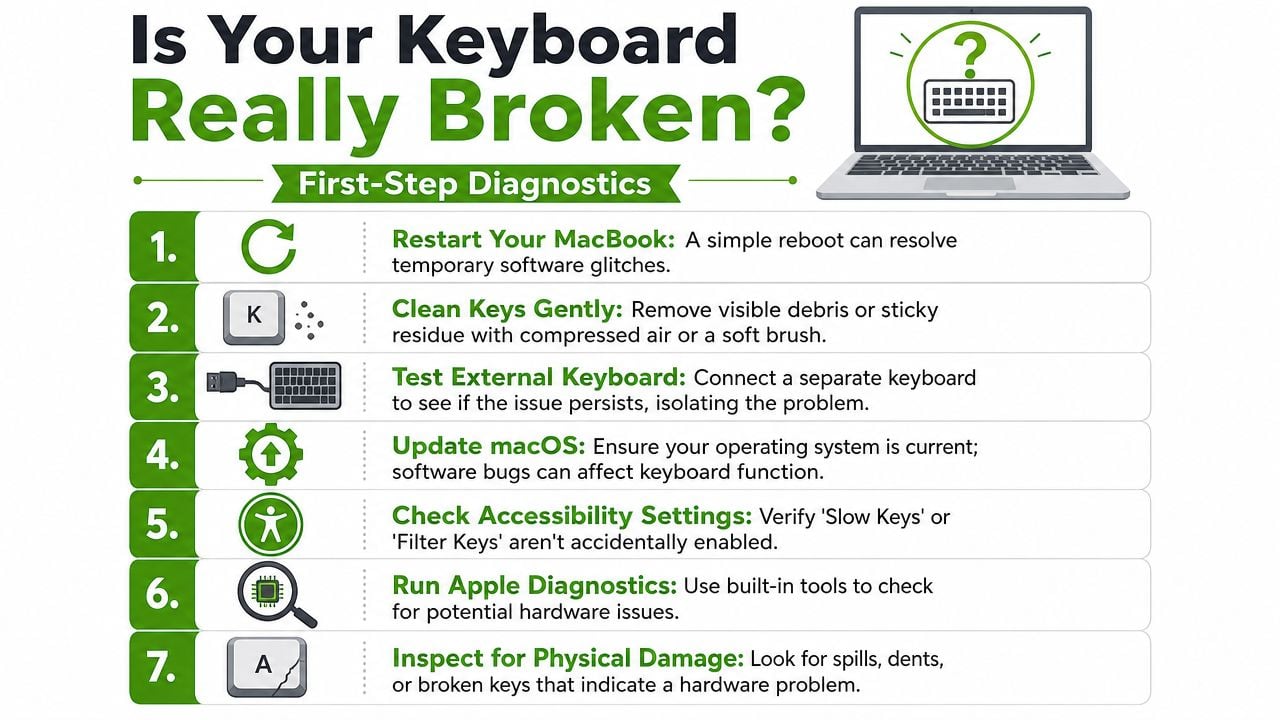
A lot of MacBook keyboard issues are not “dead keyboard” problems. They're a single sticky key, an accessibility setting that changed behaviour, a temporary macOS glitch, or debris sitting under one switch. Start by identifying the exact symptom. A key that repeats is a different problem from a key that never registers, and both are different from a keyboard that works in one app but not another.
Start with the symptom, not the assumption
Use a quick checklist before you touch any tools:
- Single key issue: One key sticks, wobbles, types twice, or feels lower than the others.
- Cluster issue: A row or group of keys misbehaves. That can point to internal damage rather than dirt.
- Whole keyboard issue: No response at all, delayed response, or inconsistent behaviour across multiple apps.
- After a spill or drop: Treat it as possible hardware damage immediately, even if the keyboard still partly works.
Practical rule: If the problem changes from hour to hour, test software first. If the same key always fails in the same way, suspect hardware or debris.
An external keyboard is one of the fastest tests. If a USB or Bluetooth keyboard works normally while the built-in keyboard misbehaves, the Mac itself is usually fine and the fault is local to the built-in keyboard assembly. If both keyboards behave strangely, look at macOS settings, app-specific behaviour, or system stability first.
Use macOS to separate software from hardware
Before anyone starts pricing MacBook keyboard repair, check whether macOS is even seeing the keystroke. Open Keyboard Viewer and press the affected key. If the on-screen key lights up but the character doesn't appear where expected, that points more toward a software or input setting issue. If the key never registers, hardware becomes more likely.
Then check Accessibility settings. Slow Keys can make a healthy keyboard feel broken because macOS waits before accepting a press. Other input settings can also change how the keyboard responds. Restarting the Mac is still worth doing because temporary input glitches do happen.
A few more smart checks:
- Update macOS: Software bugs can affect input behaviour.
- Test in another user account: If the issue disappears, the keyboard may not be the actual problem.
- Watch for malware or system instability: Strange system behaviour can create symptoms that feel like keyboard faults. If the Mac is acting oddly in other ways too, it's worth reviewing a guide on how to remove malware from a Mac.
Do a safe physical check
Once software is ruled out, inspect the keyboard without taking anything apart. Look for crumbs, dust, dried residue, shine around a single key, or a cap sitting crooked. If you recently ate over the laptop, used it in a dusty room, or carried it in a bag full of lint, contamination is a realistic cause.
Use compressed air carefully. Hold the can upright. Use short bursts. Don't jam the nozzle against the keycaps. The goal is to move loose debris out, not force moisture or propellant into the switch. A soft anti-static brush can help around the key edges.
Stop there if the keyboard was exposed to liquid. Water, coffee, pop, or cleaning spray can travel far beyond the affected key. Surface cleaning won't tell you what reached the internals.
If a MacBook keyboard starts failing after a spill, the keyboard is only part of the story. The real risk is corrosion spreading where you can't see it.
Safe DIY Fixes and Knowing When to Stop
Once the simple checks are done, there are a few home fixes that are reasonable and a few that cause more damage than they solve. The tricky part is that a MacBook keycap can look easy to remove right up until a clip snaps.
What's safe to try at home
Start with the lowest-risk methods. For a sticky key or intermittent response, careful cleaning around the cap is usually the first move. A plastic spudger, a soft micro-brush, and high-purity isopropyl alcohol on the brush, not poured into the keyboard, are the right kinds of tools. The brush should be lightly dampened, not dripping.
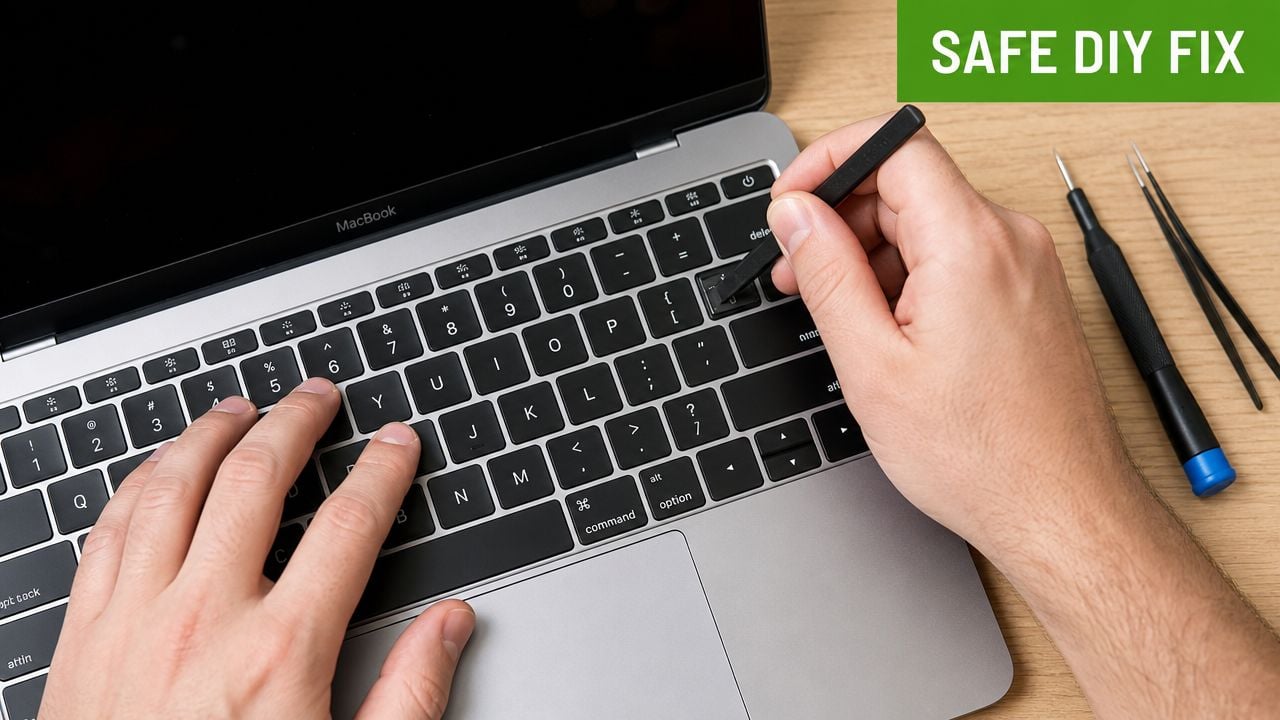
For butterfly-mechanism MacBooks, key-cap removal cleaning has a short-term success rate of roughly 55 to 65 per cent, but about 35 to 40 per cent of cases see the issue return within a year because the design is vulnerable to debris, as documented in independent repair data on butterfly keyboard cleaning. That's useful because it sets the right expectation. Cleaning can help, but it often isn't a permanent cure.
A cautious at-home sequence looks like this:
- Shut the MacBook down first: Don't clean a live keyboard.
- Use compressed air before anything else: Loose debris is the easiest win.
- Clean around the key edges: A lightly dampened micro-brush with high-purity isopropyl alcohol can lift residue.
- Test after each step: If the key improves, stop there and monitor it.
Where DIY goes wrong
The danger starts when frustration takes over. Metal tools scratch aluminium and can cut into plastic retainers. Excess liquid can wick downward. Pulling straight up on a keycap is one of the fastest ways to break mounting points, especially on more delicate designs.
On older butterfly keyboards, a key may pop off and appear intact while the mechanism underneath has shifted or cracked. At that point, a simple cleaning job turns into a more involved parts problem. Even on scissor-switch designs, a cap that goes back on crooked can create wobble, uneven feel, or a key that works only when pressed from one side.
A few signs that it's time to stop:
- The key feels physically loose: That often means the cap or retainer isn't seated properly, or something is broken.
- Multiple keys are affected: A broader pattern usually points beyond one dirty switch.
- There was liquid exposure: DIY surface cleaning won't address what reached the internals.
- You already removed the cap once and it still misbehaves: Repeated attempts tend to make the damage worse, not better.
A good DIY repair leaves the keyboard better. A risky DIY repair leaves it harder and more expensive to diagnose.
For many Edmonton users, the decision isn't whether a home fix is possible. It's whether the likely result justifies the risk to a MacBook that still has value.
Butterfly vs Magic Keyboard Repair Differences
Two MacBooks can have similar symptoms and need completely different repair decisions. The keyboard generation matters as much as the symptom.
How to tell which keyboard you have
If your MacBook Pro or MacBook Air is from the 2016 to 2019 era, there's a good chance it uses the butterfly keyboard design. If it's a 2020 or newer MacBook Air or MacBook Pro, it's generally in the Magic Keyboard generation with a scissor-switch design. That change altered both the common failure pattern and the repair outlook.
The butterfly keyboard became widely associated with premature failure, and Apple's keyboard service program for affected models officially ended in November 2024, which means owners of those 2016 to 2019 machines no longer have access to free manufacturer repairs for that issue, as reported in coverage of the program's closure. That matters in Edmonton now because the no-cost Apple path many owners relied on is gone.
MacBook Keyboard Repair At a Glance
| Feature | Butterfly Keyboard (2016-2019) | Magic Keyboard (2020+) |
|---|---|---|
| Key mechanism | Ultra-thin butterfly design | Scissor-switch design |
| Typical failure pattern | Sticky keys, repeated letters, no response from individual keys | More localised wear or damage, fewer widespread mechanism failures |
| Debris tolerance | Poor | Better than butterfly design |
| DIY keycap risk | High | Still risky, but generally less fragile than butterfly |
| Apple repair context | Free program ended in November 2024 | Standard out-of-warranty repair path |
| Common repair decision | Clean temporarily, repair selectively, or replace assembly depending on value | Diagnose isolated damage versus full assembly replacement |
Why the repair path changes by generation
Butterfly keyboards fail in a very specific way. They're thin, tight-tolerance mechanisms that don't tolerate contamination well. A tiny amount of debris or slight internal wear can affect feel and registration. That's why many owners describe the problem as random at first. It often starts with one key and spreads into a pattern over time.
Magic Keyboards are different. They're not immune to damage, but they're more forgiving in everyday use. From 2020 onward, keyboard-related service incidents on Magic Keyboard models dropped to roughly 3 to 5 per cent of shipped units in North America, compared with the 10 to 15 per cent range seen on earlier butterfly-keyboard machines, according to industry tracking cited in repair-cost guidance. That doesn't make newer keyboards cheap to repair. It just means the underlying design is less failure-prone.
Apple's repair approach is also a factor. On butterfly-keyboard MacBook Pro models, keyboard repair was commonly handled as a full top-case replacement, bundling the keyboard, trackpad, and battery into one assembly, which pushed out-of-warranty repair estimates into the roughly $200 to $600 range in the cited repair overview on MacBook Pro keyboard replacement practices. For an older machine, that can be hard to justify if the rest of the laptop is already showing age.
The same stuck key means something different on a 2018 MacBook Pro than it does on a 2022 MacBook Air. On one machine, it may be a warning sign of a known weak design. On the other, it may stay a single-key issue.
If you're deciding on MacBook keyboard repair, first identify the generation. That tells you how cautious to be with DIY work, how likely recurrence is, and whether a repair quote fits the life left in the machine.
Calling a Professional Cost and Edmonton Options
There's a point where the repair question stops being technical and becomes economic. A key that won't register is annoying. A repair that costs close to the value of the laptop is a different problem.
When the numbers stop making sense
In Canada, Apple's out-of-warranty keyboard replacements can cost CAD 300 to 650 because the keyboard is often integrated into the top-case assembly, and repair guidance notes that when this approaches about 50 per cent of the MacBook's current market value, many owners start looking at independent options instead, according to Canadian MacBook keyboard repair cost guidance. That 50 per cent rule is practical because it forces a pause before money goes into a machine that may already be near the end of its useful life.
A used MacBook can still be worth repairing. It depends on the model, condition, battery health, and what else is wrong. If the keyboard is the only fault and the rest of the machine is solid, repair may be sensible. If the keyboard issue sits alongside a weak battery, worn charging ports, or display damage, replacement starts to look more rational.
Here's a simple decision table:
| Situation | Usually the smarter move |
|---|---|
| One sticky key, no spill history, otherwise healthy machine | Start with cautious diagnosis and low-risk cleaning |
| Older butterfly-model MacBook with recurring key failures | Get a professional opinion before putting more DIY stress on it |
| Apple quote lands near half the machine's value | Reassess repair versus replacement |
| Liquid exposure plus keyboard issues | Prioritise diagnosis, not cosmetic fixes |
Why local service can be the practical choice
For Edmonton users, convenience matters almost as much as cost. Packing up a MacBook, travelling to a shop, and leaving it behind for diagnosis doesn't work well for people using the machine for work, school, or a home office. That's where local on-site support becomes appealing.

One Edmonton option is MacBook repair service in Edmonton, which covers on-site diagnostics and Apple-focused repair help. Nerds 2 You does not provide remote services. Nerds 2 You doesn't provide full MSP services but does provide ongoing support and network monitoring for small and medium businesses.
That distinction matters because keyboard problems often need hands-on inspection. A technician needs to feel the key travel, inspect for residue or impact damage, test the keyboard in person, and decide whether the issue is local to one key, tied to a broader assembly fault, or related to prior liquid exposure. Remote advice can help with basic triage, but it can't replace physical diagnosis.
Paying for the wrong repair is more expensive than paying for the right diagnosis.
What to Expect From Your Nerds 2 You On-Site Repair
It's understandable to want to know how the visit goes and whether they'll get a straight answer. That's fair, especially if the MacBook is a daily-use machine and the keyboard issue has already wasted enough time.
What the visit usually looks like
The process usually starts with a description of the symptom. A stuck space bar, keys that double-type, a cluster that stopped after a spill, or a keyboard that only fails in certain conditions all point the technician in different directions before arrival. On-site service works well for this because the MacBook can be tested in the same place and setup where the problem happens.
During the appointment, the technician checks the obvious first. That includes key feel, cap seating, contamination around the affected area, operating system behaviour, and whether the issue appears isolated or systemic. If an external keyboard works normally while the built-in keyboard does not, that's useful. If the machine shows other signs of hardware trouble, that changes the recommendation.
For a general idea of the service experience, what on-site computer repair includes gives a good picture of how a home or office visit works. The main advantage is simple. You get diagnosis where the device is located, without making a separate trip just to find out whether the repair is worth doing.
How on-site diagnosis helps avoid repeat repairs
Repeat keyboard trouble is common enough that it should be part of the conversation. A 2023 global survey found that about 32 per cent of MacBook owners who had keyboard work done reported a recurrence within 12 months, as noted in survey coverage on recurring MacBook keyboard issues. That doesn't mean every repair is temporary. It means the first fix needs to match the underlying cause.
If the problem came from trapped debris under one key, a targeted repair may hold. If the keyboard has broader wear, the “fixed” key may only be the first one to complain. If liquid reached the assembly, cleaning one area won't solve what's happening underneath. On-site diagnosis earns its value in these scenarios. The goal isn't to make one key click again for a week. It's to decide whether cleaning, selective repair, or a larger replacement is the durable option.
A good technician should explain the trade-offs plainly:
- If a low-risk fix is reasonable: you should hear that.
- If the keyboard may fail again soon: you should hear that too.
- If the MacBook isn't worth the repair cost: that should be said before more money goes into it.
“The best repair decision is the one that fits the machine's age, value, and the way you use it.”
That kind of honesty matters more than optimism. A MacBook keyboard repair can be straightforward, temporary, or not financially sensible at all. What you want from an on-site visit is clarity.
If your MacBook keyboard is sticking, double-typing, or failing outright, Nerds 2 You Edmonton can help you sort out whether the right move is a safe fix, a deeper repair, or replacing the machine before you overspend.
Contact Nerds 2 You for quality professional service
Experience the difference with our dedicated team of experts ready to assist you. Whether you need immediate support or have questions about our services, we are here to help. Reach out today and let us provide you with the reliable service you deserve. Your satisfaction is our priority and we guarantee a prompt response to all inquiries.
Discover more from Nerds 2 You
Subscribe to get the latest posts sent to your email.