
You sit down, press the power button, hear the computer wake up, and then nothing useful happens. The monitor stays black, or it flashes No Signal, or Windows seems to load but the screen you need never appears.
That's frustrating, but it doesn't automatically mean the monitor is dead. In home offices around Edmonton, this problem is often something smaller: the wrong input, a cable that looks connected but isn't fully seated, a dock that stopped passing video properly, or a display mode setting that changed after a restart.
The fastest way to solve it is to stay methodical. Make one change, test it, and only then move to the next thing.
Table of Contents
That Blank Screen A Systematic Approach to Fixing It
A blank display pushes people into guesswork. They swap cables, change settings, restart three times, uninstall a driver, then wonder which step made a difference. That's where troubleshooting usually gets slower, not faster.
CompTIA's troubleshooting methodology emphasizes narrowing the scope one component at a time, and that matters here because changing cables, ports, and drivers all at once makes root-cause identification unreliable, as explained in TechTarget's summary of CompTIA-style troubleshooting discipline. If one step fixes the issue, you want to know which one did it. If a step makes things worse, you need a clean way to roll back.
The rule that saves the most time
Treat a monitor not detected problem like a chain. Power, cable, port, adapter, display mode, driver, then deeper hardware. Start at the simplest point in the chain and move inward only after you've ruled out the obvious.
Practical rule: Change one thing. Test. Stop if the display returns.
This is the same approach I'd use standing beside your desk. I wouldn't start by replacing parts or downloading software. I'd first ask what changed recently, whether the monitor has power, whether you're using HDMI, DisplayPort, or USB-C, and whether a dock or adapter sits in the middle.
Why this matters before you buy anything
A lot of people assume a black screen means they need a new monitor. Sometimes that's true. Often it isn't. Even display selection decisions can get confusing when you're mixing work screens, laptop docks, and different resolutions, so it helps to understand the basics first. If you're comparing screens for office use, these insights into choosing business displays give useful context on resolution and monitor fit without jumping straight into replacement.
What works is patience and isolation. What doesn't work is changing six variables in ten minutes and hoping one of them sticks.
First Things First The Simple Physical Checks
Start with the checks that feel almost too basic. They solve more cases than people expect, especially after someone has moved a desk, cleaned around a workstation, or connected a laptop in a hurry.
Confirm the monitor has power
Look for the monitor's power light. If there's no light at all, don't focus on Windows yet. Check the power cord at both ends, the monitor end and the wall or power bar end.
If the outlet itself seems questionable, that's a separate electrical issue, not a display setting problem. In that case, a practical resource on diagnosing an outlet not working electrician issue can help you rule out the room power side before you keep blaming the computer.
Check the video cable properly
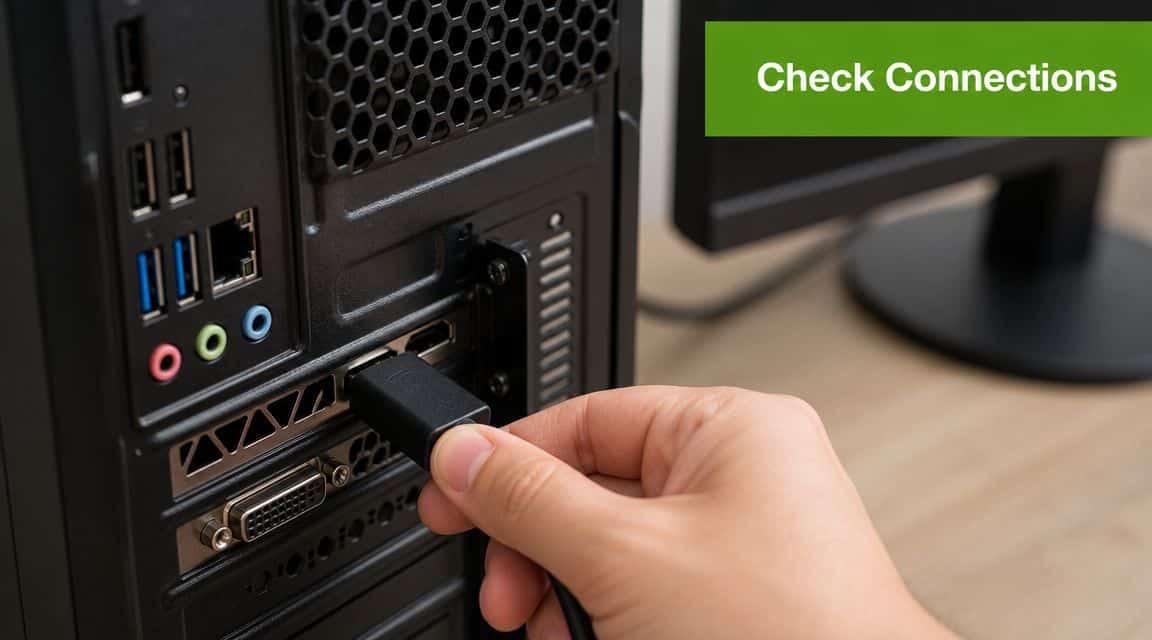
Don't just glance at the cable. Put your hand on both ends and reseat them firmly. HDMI, DisplayPort, USB-C, DVI, and older VGA connections can all look connected while still sitting slightly loose.
Focus on these points:
-
Computer end: Make sure the cable is fully inserted into the video output, not half-seated or plugged into the wrong port.
-
Monitor end: Confirm the connector is tight and straight.
-
Cable condition: If the plug wiggles excessively or the cable jacket is visibly damaged, treat the cable as suspect.
A loose cable creates the exact symptom many people describe as a monitor failure. The monitor turns on, but no usable signal reaches it.
Make sure the monitor is on the right input
Many monitors have multiple inputs such as HDMI 1, HDMI 2, DisplayPort, or USB-C. If the monitor is listening on the wrong one, the computer can be fine and the screen will still stay blank.
Use the monitor's physical menu buttons and cycle to the input you're using. Don't assume it auto-switches correctly. Plenty of monitors don't.
If the monitor says No Signal, that often means the panel has power and is working. It just isn't receiving video on the selected input.
Power-cycle the whole path
Microsoft's external display guidance includes power-cycling the monitor, PC, and cables for 60 seconds before moving into deeper fixes, which can clear a temporary handshake problem in the display path according to Microsoft's external monitor troubleshooting steps.
Do it in this order:
-
Shut the computer down fully
-
Turn the monitor off
-
Unplug power from both devices
-
Wait 60 seconds
-
Reconnect power and start again
That short reset often clears odd states that survive a normal restart.
A Deeper Look at Your Connections and Adapters
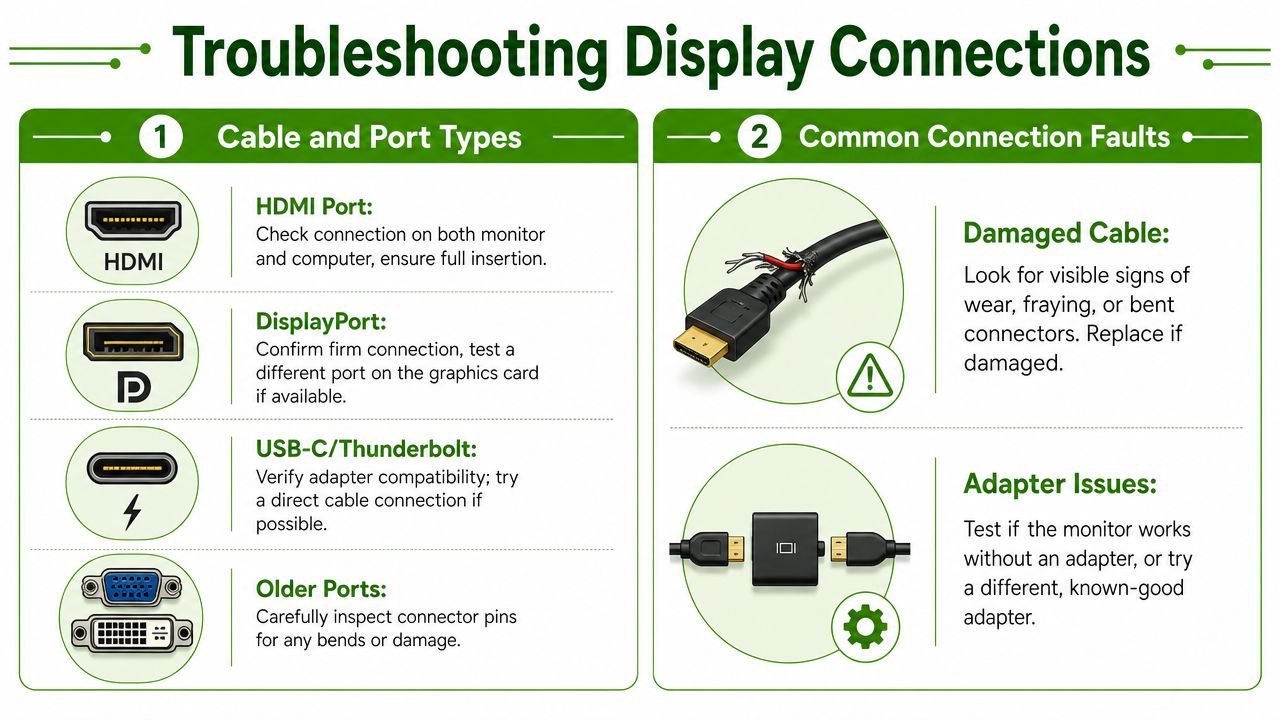
If the basic checks didn't fix it, stop treating the setup as one cable and start treating it as a signal path. A monitor connection often passes through several pieces: the computer's video output, a cable, maybe an adapter, maybe a dock, then the monitor input. Any one of them can fail.
Test the chain one piece at a time
Dell's official troubleshooting flow recommends testing each monitor individually, trying the same monitor on a different port, and checking whether one display works while another does not. That process helps separate a bad cable, port, or adapter from a more serious GPU or monitor issue, as outlined in Dell's guide to multiple display troubleshooting.
That logic is especially useful when a desk setup includes:
-
A docking station
-
A USB-C to HDMI or USB-C to DisplayPort adapter
-
A chain of monitor cables routed through a hub
-
Multiple screens with different connection types
The trap is assuming the monitor failed when the actual problem is the little device in the middle.
Remove the dock if you can
Docks and dongles are convenient. They're also common failure points. If you're troubleshooting a monitor not detected error on a laptop, disconnect the dock and connect the monitor directly to the laptop with the simplest direct cable the laptop supports.
If the display works directly, the issue usually sits with the dock, adapter, or the way that chain negotiates video. If you use more than one screen on a portable machine, this guide on connecting multiple monitors to a laptop is useful for understanding the limitations of various connection paths.
A quick isolation table
| Test | What it tells you |
|---|---|
| Try the same monitor on another port | The original port may be faulty |
| Try a different cable | The original cable may have failed |
| Remove adapter or dock | The middle device may be blocking the signal |
| Test one monitor at a time | A multi-display setup may be confusing the output path |
What I'd pay attention to in a real setup
A desktop tower with a dedicated graphics card adds one more wrinkle. Many towers have motherboard video ports and graphics card video ports. If the monitor is plugged into the wrong set, especially after hardware changes, you can get no picture or the wrong display behavior.
Also inspect older connectors carefully. VGA and DVI pins can bend. HDMI and DisplayPort ends can loosen inside the shell. USB-C can carry power without carrying a usable video path if the connection setup isn't right.
A direct connection beats a convenient connection during troubleshooting. Convenience comes back after the screen does.
Easy Software and Driver Fixes for Windows and macOS
Once the cable path checks out, software is the next place to work. The key is to change one thing, test it, and only then move to the next step. That saves time and keeps a small display problem from turning into a driver mess.
Windows fixes that are worth doing first
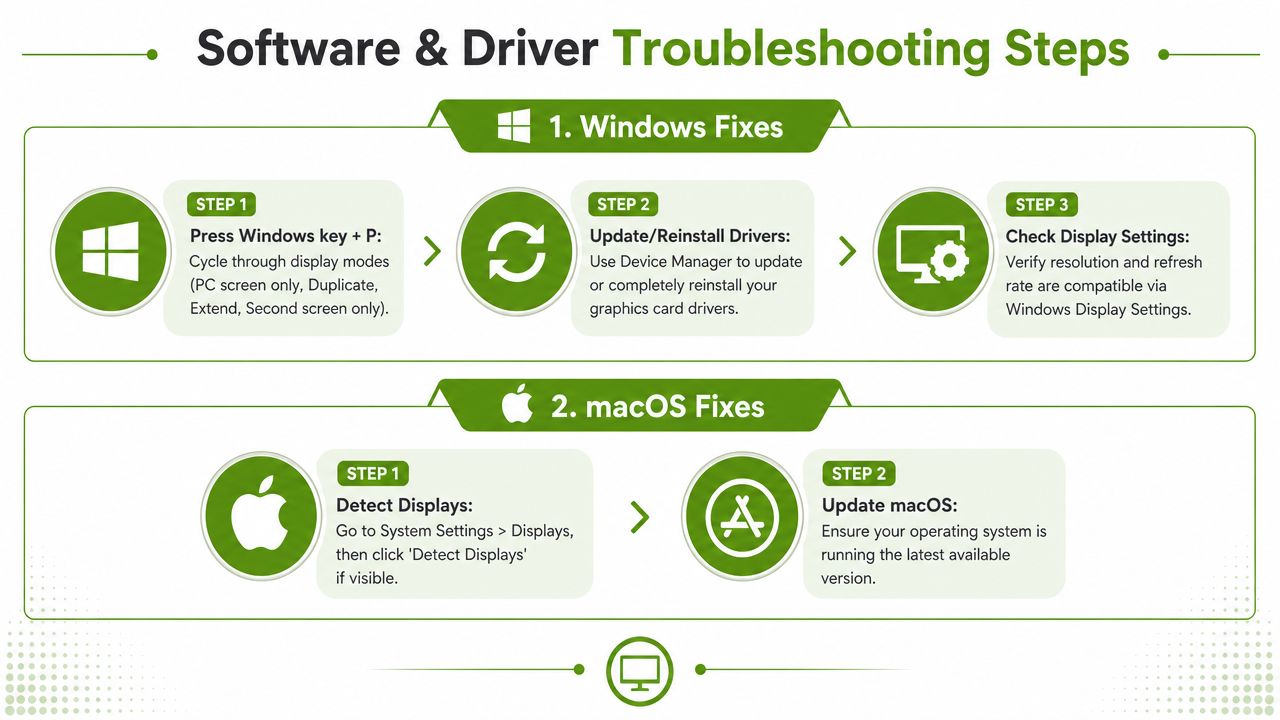
Start with the quickest reset that does not change anything permanently. Press Windows key + P and choose the display mode you want. If Windows is set to the wrong mode, the computer may be working fine but sending the picture somewhere you are not looking. For a second screen setup, try Extend. For the same picture on both screens, try Duplicate.
Then press Windows key + Ctrl + Shift + B. The screen may flicker or go black for a moment. That is normal. This command refreshes the graphics driver in memory, which can bring back a screen that disappeared after sleep, docking, or a display handshake failure.
If nothing changes, open Settings > System > Display and check whether Windows sees another screen at all. If it does, select it and confirm the arrangement, resolution, and whether it is set to extend or duplicate. A monitor can be detected but placed off to one side in the layout, which makes it look dead when it is only misconfigured.
Driver work in the right order
Driver changes can help, but they are also where people create a second problem. I see this a lot after someone installs three utilities, two driver packs, and a GPU update all in one sitting.
Use Device Manager and test each step before doing the next one:
-
Roll back the display adapter driver if the issue started right after a Windows update or graphics update
-
Update the display adapter driver if the installed driver is old, corrupted, or clearly not matching the hardware
-
Uninstall the display adapter and restart so Windows can reload a clean copy
Stop after each change and test the monitor. If you do all three in a row, you lose the trail and it becomes harder to tell what helped or what made it worse.
Skip random "driver fixer" apps. They often install the wrong package, add startup junk, or make changes that are hard to reverse. If a tool cannot clearly tell you what driver it is changing and how to roll it back, do not use it.
A practical note before you go deeper
If Windows still behaves oddly after basic display checks and driver resets, the next layer may involve firmware or startup-level settings rather than the desktop itself. If you need that route, follow a safe guide for how to open BIOS in Windows 11 instead of guessing your way through boot menus.
macOS steps that are usually worth checking
On a Mac, open System Settings > Displays and see whether the external screen appears there. Sometimes opening that panel forces macOS to check the connection again.
If the monitor still does not show up, keep the process clean and controlled:
-
Reconnect the display cable carefully
-
Remove the hub or adapter and test a direct connection if your Mac supports it
-
Restart the Mac with the monitor already connected
-
Install pending macOS updates
Adapters are a common trouble spot on Macs, especially with USB-C, Thunderbolt, and HDMI mixed together. A charger can work through a port while video still fails, so do not assume the adapter is fine just because the Mac is getting power.
The safest approach is boring on purpose. Make one change. Test it. Write down what happened. If the screen comes back, you know what fixed it. If it does not, you have not piled on enough changes to hide the underlying cause.
Advanced Hardware Isolation and BIOS Checks
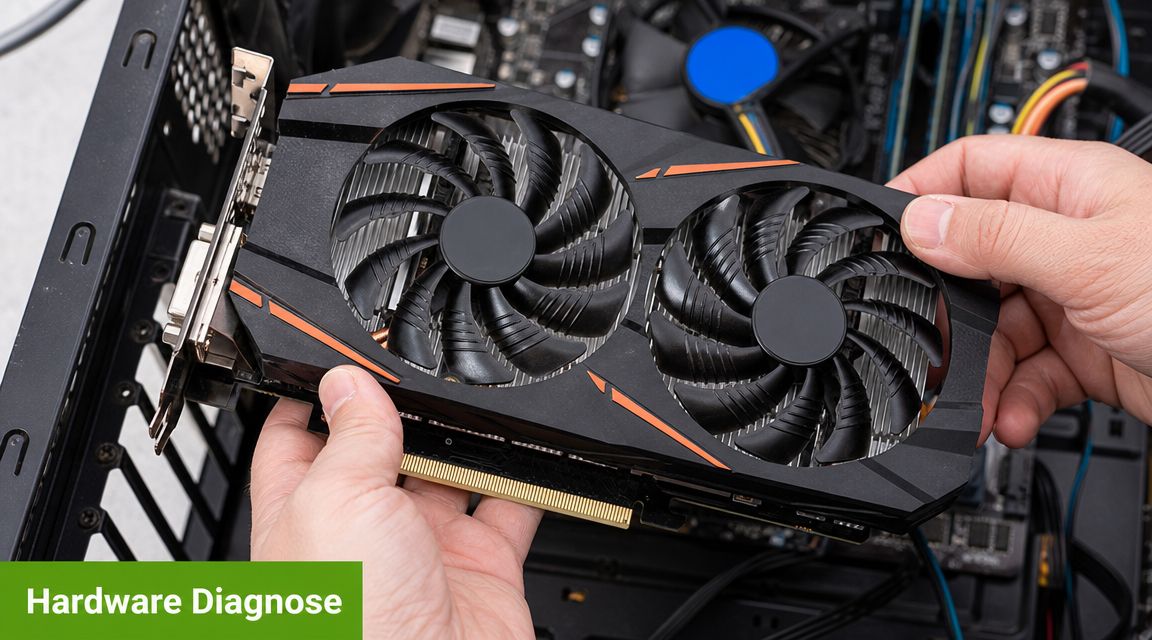
A blank screen after you have already checked cables and display settings usually means one thing. It is time to stop changing multiple variables and isolate the fault one part at a time.
Use substitution to narrow it down
The cleanest hardware test is simple substitution. Try your monitor on a different computer. Then try a different display on your computer using the same port and cable type. That tells you whether you are dealing with a bad monitor, a bad output, a faulty adapter, or a deeper issue in the PC itself.
Here is the logic:
| Test | Likely conclusion |
|---|---|
| Your monitor works on another computer | The original computer is the problem |
| Another display works on your computer | Your original monitor is the problem |
| Neither test works cleanly | The cable, port, or adapter may still be involved |
This method saves time because each test answers one question. It also keeps you from piling on random fixes that can muddy the picture.
Two home tests that give useful answers
Use any known-good screen you can get your hands on. A TV with HDMI is fine for this test. If your computer shows a picture on that TV, the graphics hardware is at least producing video on one output.
Then test the original monitor on another machine. A laptop from work or a family desktop is enough, as long as it supports the same connection. If the monitor wakes up there, the panel is probably fine and your attention should shift back to the computer, its ports, or its graphics path.
Do one swap at a time. Change the screen first, then the cable, then the port. If you change everything at once, you will not know what fixed it.
BIOS and startup checks
Startup video gives good clues because it appears before Windows or macOS loads. If you can get into BIOS or UEFI and see a picture there, the monitor and at least part of the video chain are working. If you need help reaching that menu, follow this guide for how to open BIOS in Windows 11.
If there is no image even during startup, the odds shift toward hardware, firmware, or the wrong physical output being used. On desktops with a separate graphics card, I often find the monitor plugged into the motherboard video port by mistake after someone moved the tower or cleaned behind the desk. The system may still power on normally, but the active video output is somewhere else.
One more clue matters here. If BIOS appears on one port but not another, that usually points to a specific output, adapter, or graphics setting rather than a dead monitor.
A safe warning before you change firmware settings
BIOS menus are useful, but they are not a place for guesswork. Avoid changing graphics, PCIe, Secure Boot, or primary display settings unless you know why you are changing them and how to reverse them. A random BIOS tweak can create a second problem that is harder to undo than the original monitor issue.
The same caution applies to software that claims it can detect and repair display problems automatically. If a website pushes a download before it explains the cause, skip it. Unknown "fix" tools can install junk software, change drivers without a clear rollback path, or expose the system to security risks.
If the hardware swap tests and BIOS clues still do not point to a clear answer, the remaining fault is often inside the PC, the graphics card, or the board itself.
When You Need Professional On-Site Help in Edmonton
At a certain point, the remaining possibilities get more technical. A failing graphics card, a damaged motherboard video output, intermittent power delivery, or a dock that behaves inconsistently can all produce the same black-screen symptom.
This is also where online troubleshooting becomes risky. In Canada, the Canadian Anti-Fraud Centre received 41,000 fraud reports in 2023 with $569 million in losses, and a monitor issue can push people toward random downloads, fake support offers, or unsafe remote-help pitches while they search for a fix, as noted in this summary referencing the Canadian fraud burden and display-related scam risk.
For that reason, don't install “repair” tools from search results just because the screen won't detect properly. Don't hand control of your machine to an unknown remote helper either.
If the issue is still unresolved after the checks above, a safer next step is an on-site diagnostic visit from a local computer technician. For Edmonton homes and offices, computer service and repair can make more sense than disconnecting your full setup and hauling everything to a shop. That's especially true when the problem involves a desktop tower, multiple monitors, a dock, and a printer or network setup that all need to work together again.
Nerds 2 You doesn't provide remote services, and it doesn't operate as a full MSP. It does provide on-site computer help and ongoing support and network monitoring for small and medium businesses that need practical local assistance.
If your monitor still isn't detected and you'd rather have someone diagnose it safely on-site, contact Nerds 2 You Edmonton. A technician can check the monitor, cabling, ports, adapters, graphics output, and system settings in your actual workspace so you can get back to work without guessing.
Contact Nerds 2 You for quality professional service
Experience the difference with our dedicated team of experts ready to assist you. Whether you need immediate support or have questions about our services, we are here to help. Reach out today and let us provide you with the reliable service you deserve. Your satisfaction is our priority and we guarantee a prompt response to all inquiries.
Discover more from Nerds 2 You
Subscribe to get the latest posts sent to your email.