

You’re probably reading this on a laptop with too many tabs open, a spreadsheet buried behind email, and a Teams or Zoom window floating over the one document you need. That’s the point where the question arises: how to connect multiple monitors to laptop setups without turning their desk into a cable mess.
In Edmonton, that question comes up constantly in home offices and small businesses. Some people want one extra screen for email and meetings. Others want a proper two or three screen layout for bookkeeping, design, scheduling, quoting, or remote admin work. The good news is that most modern laptops can handle more than people expect. The bad news is that plenty of them can’t do it the way online guides promise, especially if the machine is older or the ports are misleading.
A good multi-monitor setup isn’t just about plugging in more screens. It’s about checking what your laptop can output, choosing the right connection method, and avoiding the hardware mismatches that waste an afternoon.
Why a Single Laptop Screen Is Holding You Back
A laptop screen is fine when you’re answering a few emails or browsing. It stops being fine when your day involves switching between a browser, file explorer, accounting software, messaging, and a video call. The work itself may be simple, but the constant shuffling gets tiring fast.
That lost time isn’t just a feeling. In the Edmonton region, 68% of home office workers using dual-monitor setups reported a 42% average productivity increase, and reduced window-switching can cut task errors by as much as 33%, according to Jon Peddie Research findings on multi-display productivity.
That lines up with what people notice once they stop cramming everything onto one panel. One screen becomes the place you work. The second becomes the place you reference, monitor, compare, or communicate. If you’re in meetings all day, the laptop can hold the call while an external display holds the files you’re discussing. If you’re doing admin, you can keep email visible without burying the software you’re entering data into.
More screen space changes how you work
The biggest shift is mental, not technical. You stop hunting for the right window and start keeping tasks organised by location.
A few common examples:
- Remote work: Keep Teams or Zoom on one display and your working documents on another.
- Bookkeeping and admin: Put your accounting program on the main screen and supporting PDFs or bank entries on the second.
- Creative work: Use one display for the canvas and one for tools, previews, or reference material.
- General office tasks: Keep email, calendar, and browser separate instead of stacked.
A second monitor feels like extra desk space for your brain. You stop interrupting yourself.
The physical setup matters too. If you’re rebuilding your workspace from scratch, furniture, monitor height, and chair position matter almost as much as the cables. A practical guide on how to set up a home office can help before you buy stands, screens, or a bigger desk.
It’s not a luxury anymore
In a lot of Edmonton homes and offices, a dual-screen setup has moved from “nice to have” to “basic equipment.” Once your work includes customer records, quoting tools, browser tabs, shared drives, and video meetings, a single laptop display becomes the bottleneck.
The trick is making sure your laptop can support the setup you have in mind before you start ordering monitors.
Assess Your Laptop's Capabilities Before You Buy
Before you buy screens, arms, adapters, or a dock, inspect the laptop you already have. Failing to do so often leads to setups going sideways. Someone sees a USB-C port, assumes it supports video, then finds out it only handles data or charging. Or they buy two monitors for an older laptop that can only run one external display cleanly.

A lot of Edmonton businesses are still using older machines. Many Edmonton businesses still use 5-10 year old laptops that may only have a single HDMI port and lack modern standards like USB-C with DisplayPort Alt Mode, limiting them to one external monitor without specialized adapters, as noted in Microsoft’s discussion of laptop monitor connection limits.
Start with the ports on the side of the laptop
Look at the actual machine first. Don’t rely on memory.
You’re looking for video-capable ports such as:
- HDMI: Common on business laptops and many consumer models. Simple and familiar.
- DisplayPort or Mini DisplayPort: Less common on newer consumer laptops, still found in some business hardware.
- USB-C or Thunderbolt: Can be excellent, but only if the port supports video output.
Some laptops have more than one USB-C port, but only one may support display output. Symbols beside the port can help, but they’re not always clear.
Then check what Windows or macOS sees
A laptop’s graphics hardware determines what it can drive. The port alone doesn’t tell the whole story.
On Windows:
- Right-click the Start button and open Device Manager.
- Expand Display adapters.
- Note whether you have Intel UHD/Iris, NVIDIA, AMD, or a combination.
- Open Settings > System > Display and see how current displays are detected.
On macOS:
- Click the Apple menu.
- Open About This Mac.
- Check the graphics information and connected display support under system details.
- Open System Settings > Displays to see what the Mac is currently recognising.
Practical rule: If the laptop doesn’t clearly support the number of screens you want, don’t buy hardware based on hope.
Questions that save you from buying the wrong gear
Run through these before you order anything:
- How many external monitors do you want? One extra screen is simple. Two or more can require a dock, MST support, or a specific graphics capability.
- Will you use the laptop screen too? Some laptops can run two externals plus the built-in display. Others hit a limit earlier.
- What resolution are the monitors? Older laptops can struggle once you start pushing larger or sharper displays.
- Is the laptop old enough to be the weak link? Legacy Dell, HP, and Lenovo systems often need workarounds.
- Do you need charging through one cable? If yes, that points you toward a powered dock, not random adapters.
One more point gets missed all the time. If you’re already shopping for a replacement computer, it’s worth comparing ports and graphics support before you buy. This guide on choosing the right laptop in 2025 is useful for checking what current machines offer before you commit.
What often works badly
Not every workaround is worth the trouble. Chaining low-cost adapters together can produce unreliable results, especially on older laptops. A single HDMI port doesn’t magically become dual independent displays just because a splitter exists. In many cases, a splitter only duplicates the same image.
That’s the difference between a clean setup and a frustrating one. Once you know your laptop’s limits, the hardware choices get much easier.
Choosing Your Connection Hardware and Cables
Once you know what the laptop can do, the next decision is how you want to connect the monitors. People typically choose between direct connections, a dock, an MST hub, or a USB display adapter. Each method has a place. Each also has failure points.
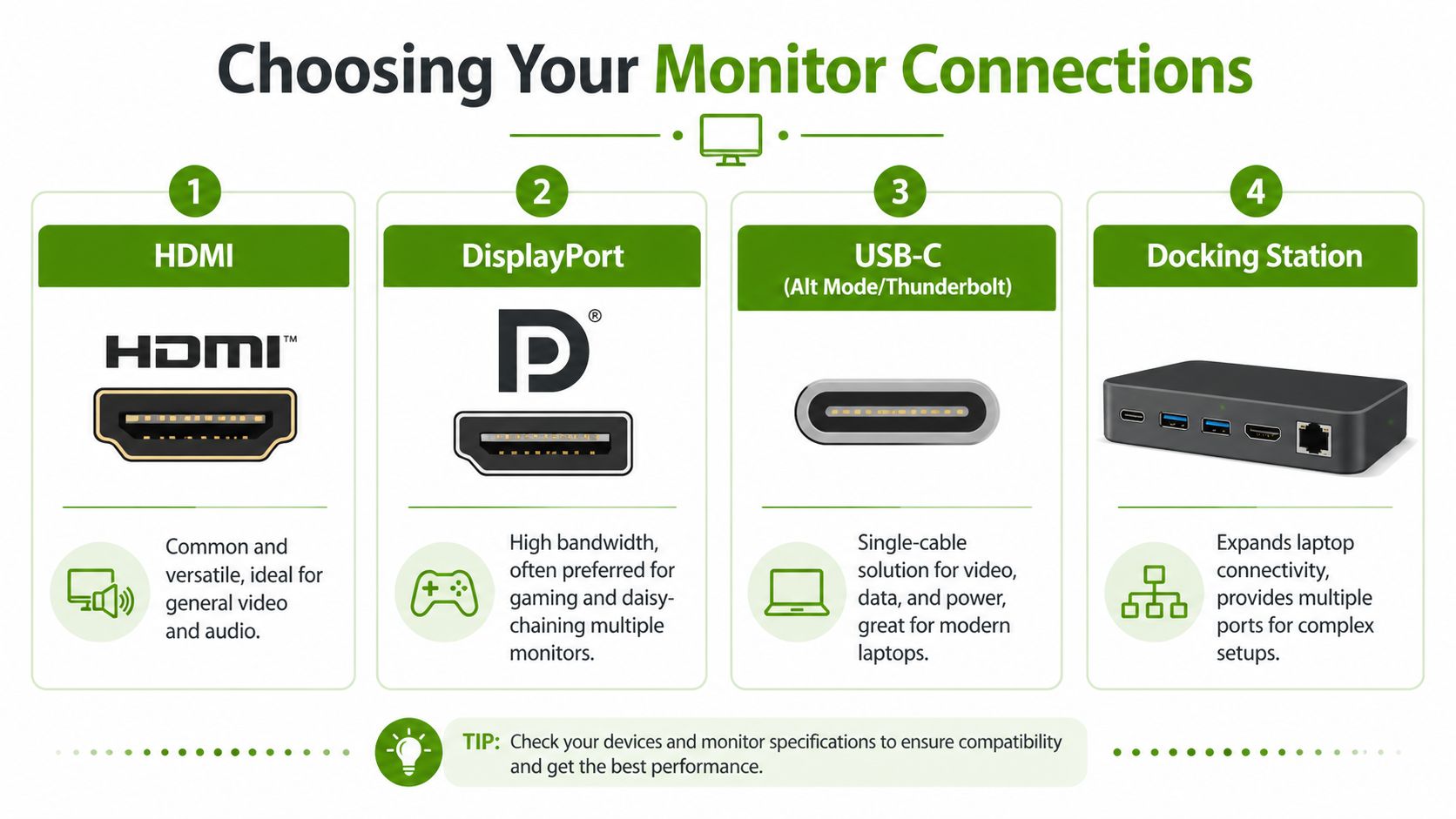
For laptops with limited ports, a powered USB-C or Thunderbolt dock is often the best solution. These can drive multiple 4K displays, charge the laptop, and connect peripherals through a single cable, with a 25% productivity gain in efficient workflows according to Plugable’s discussion of multiple monitors and workflow efficiency.
The four common connection methods
Some setups are simple. Others look simple but aren’t.
| Connection Type | Best For | Pros | Cons |
|---|---|---|---|
| Direct HDMI or DisplayPort connections | Laptops with enough built-in video outputs | Straightforward, fewer components, less to troubleshoot | Limited by available ports on the laptop |
| USB-C or Thunderbolt docking station | Modern laptops, cleaner desks, users who want one-cable connection | Video, charging, USB devices, and network through one main connection | Compatibility matters, and not every dock works well with every laptop |
| DisplayPort MST hub or daisy-chain | Specific Windows setups with compatible DisplayPort support | Can expand one DisplayPort path into multiple displays | Can be confusing to configure, and support varies by hardware |
| USB display adapter | Older machines or edge cases where native outputs are limited | Useful as a workaround when native video outputs fall short | Can be less elegant and may introduce driver or performance quirks |
What usually makes sense in real offices
Direct cable connections are the cleanest choice when the laptop already has the right outputs. If you’ve got HDMI plus USB-C video out, that may be enough for two externals without buying a dock.
A powered dock is usually the best fit when the laptop only has one useful output or when the user wants a simple desk routine. Sit down, connect one cable, and get charging, monitors, keyboard, mouse, and network at once. Good docks reduce clutter and user error.
MST hubs and daisy-chaining can work well, but they’re less forgiving. The laptop, the dock or port, and the monitors all need to support the right standards. When any part of that chain doesn’t cooperate, detection problems start.
USB display adapters are the fallback option. They can save an older system, but they’re not my first choice for someone who wants the fewest moving parts.
Cables matter more than people think
A lot of “monitor problems” are cable problems. Cheap or mismatched cables can cause blank screens, flicker, odd resolution limits, or a display that cuts in and out after the laptop wakes from sleep.
Look for cables that match the ports and the display standard you need. Don’t assume the cable in the monitor box is the best one for your setup.
If a setup works only when the cable is held at a certain angle or after repeated reconnects, stop blaming Windows first.
Monitor choice also affects comfort. If you’re buying new displays and spending all day in front of them, it helps to compare monitors designed to reduce eye strain so you’re not solving one problem and creating another.
If your current laptop is being held back by weak ports, storage limits, or age, the better answer may be a hardware refresh rather than adapter stacking. In that situation, guidance on hardware upgrades is often more useful than buying another converter.
What works versus what doesn’t
Here’s the short version.
- Works well: A laptop with native video support connected by proper cables, or a compatible powered dock matched to the laptop.
- Works sometimes: MST chains and mixed adapter setups on business-class hardware that supports them properly.
- Usually disappoints: Passive splitters sold as if they create two independent displays from one unsupported output.
- Be careful with: Older fleets that need adapter chains just to imitate features newer laptops support natively.
The right answer usually isn’t the cheapest part on the shelf. It’s the part that matches the laptop you have.
Connecting and Configuring Your Displays
This is the point where the hardware either comes together smoothly or starts arguing with you. A careful setup sequence saves time. Randomly plugging in cables while the laptop is awake and switching inputs on three monitors usually doesn’t.
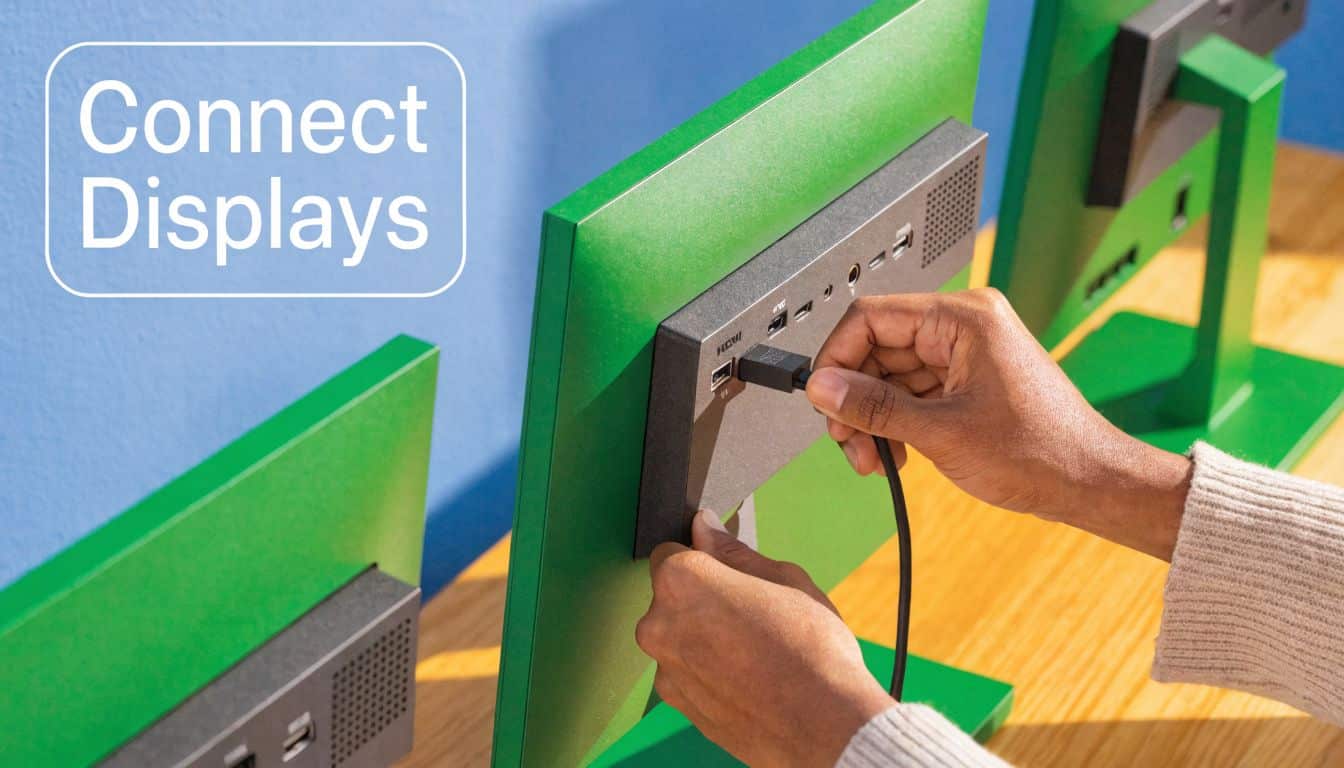
Physical setup first
Start with everything powered down if possible. That includes the laptop, monitors, and dock.
Then connect in a simple order:
- Place the monitors where they’ll stay. Don’t configure left and right positions before you know where they’ll sit.
- Connect the main video path. That may be laptop to monitor, or laptop to dock first.
- Attach the second monitor. If you’re using a dock, connect both displays to the dock before turning things on.
- Connect power. A powered dock should be plugged into its own power supply, not relied on as a passive adapter.
- Turn on the monitors and select the correct input. Many no-signal calls come down to the monitor being set to the wrong source.
- Boot the laptop last. That often gives the system the cleanest chance to detect everything properly.
If one monitor appears and the other doesn’t, swap cables or ports before changing a pile of software settings. It’s a fast way to isolate whether the issue follows the cable, the screen, or the laptop output.
Set the displays properly in Windows
Windows usually detects basic monitor connections well, but it doesn’t always choose the layout you want.
In Windows, press Win+P to quickly access display modes like Extend. Once the displays are active, open Display Settings and arrange the monitor icons to match the physical desk layout, as shown in this walkthrough on Windows and macOS display arrangement.
Use these settings carefully:
- Choose Extend, not Duplicate, if you want separate workspace on each monitor.
- Drag the screen icons so left, centre, and right match your desk.
- Select the main display for the screen where you want apps to open by default.
- Check resolution settings for each monitor so text and icons don’t look blurry.
- Confirm scaling if one screen looks tiny compared with the others.
Set the displays properly in macOS
Mac setups are usually tidy once supported hardware is in place, but the support rules can be stricter.
Open System Settings > Displays and look for the arrangement view. Move the monitor boxes so your cursor travels naturally from one screen to the next. If the menu bar is on the wrong screen, assign the primary display there.
Some Mac users run into issues when trying to add more displays than the machine natively supports. In that case, a compatible dock or adapter may be necessary, and not every workaround is equal.
Match the digital arrangement to the real desk. If the cursor has to “jump” the wrong way, the layout is wrong even if both monitors are on.
If you want another visual explanation of physical placement and general layout ideas, this guide on how to set up dual monitors is useful for the practical side of desk setup.
Final checks before you call it done
Before you settle in, test the setup like a normal workday:
- Open several apps and drag them between screens.
- Put a video call window on one display and documents on another.
- Restart the laptop once to make sure the screens return correctly.
- Let the system sleep, then wake it and confirm the monitors reconnect.
- Test keyboard, mouse, webcam, and network if they’re connected through a dock.
A setup that only works on the first boot isn’t finished. Reliable wake-from-sleep behaviour matters just as much as the initial connection.
Optimizing Performance and Troubleshooting Glitches
A connected setup can still feel wrong. Text may look soft, one monitor may flicker, colours can seem off, or the laptop may get louder and hotter than expected. That’s where tuning matters.
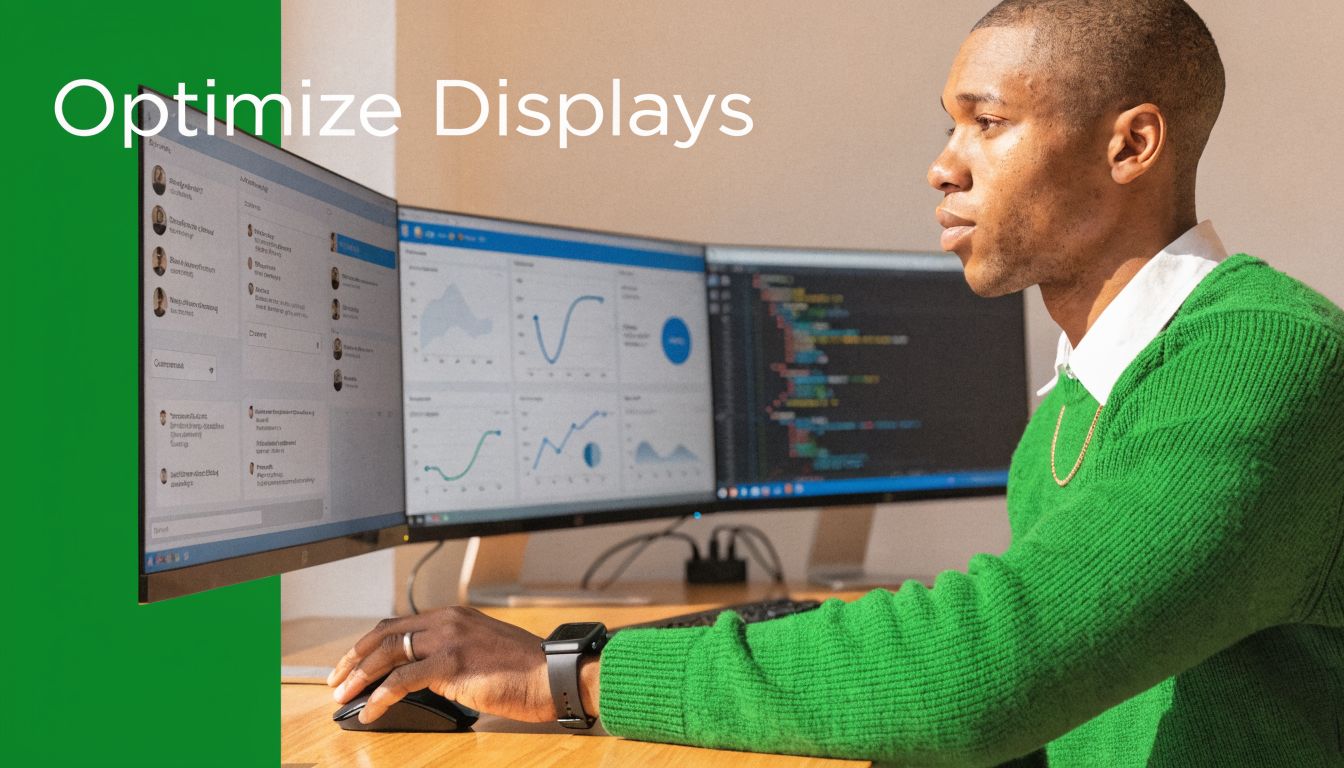
One issue gets overlooked all the time. Driving multiple 4K monitors can significantly tax a laptop's GPU and power system, potentially draining a full battery in under an hour without a proper powered docking station or direct connection to a wall outlet, according to this discussion of power drain in multi-monitor laptop setups.
Performance trade-offs people notice first
The most common complaints are practical ones:
- Battery drain: A laptop that seemed fine on its own may not stay usable for long when pushing multiple high-resolution displays.
- Heat and fan noise: More display load means more work for the graphics system.
- Lag or stutter: This can show up when docks, adapters, and mixed resolutions are all involved.
- Wake issues: Some systems don’t reconnect cleanly after sleep.
That doesn’t mean the setup is wrong. It means the laptop may need proper power, updated drivers, or a lower-demand display arrangement.
Quick fixes that solve a lot of problems
If a monitor isn’t behaving, work through the basics in a strict order.
- Check the input source on the monitor. The screen may be listening to the wrong port.
- Reseat the cable at both ends. Loose video cables cause all kinds of odd behaviour.
- Test one monitor at a time. This shows whether the issue is global or isolated.
- Update graphics and dock drivers. Many detection and flicker issues trace back to outdated software.
- Try a known-good cable. Swapping one cable is faster than changing a dozen settings.
- Plug into wall power. If the laptop is underpowered, stability drops fast.
Fine-tune the image quality
Once the screens stay connected, improve the daily experience.
Set each monitor to its proper native resolution. If text looks too small, adjust scaling rather than choosing a lower resolution unless you have a specific reason. If motion looks choppy on a monitor that should be smoother, check the refresh rate setting in the display options.
Colour mismatch is also common when mixing brands or ages of monitors. You can improve consistency with each monitor’s built-in settings, but two different panels won’t always look identical.
The goal isn’t just “detected.” The goal is comfortable, stable, and repeatable every morning.
Warning signs of a bad hardware match
Some problems keep coming back because the gear was never a good fit:
- The dock disconnects whenever the laptop is bumped.
- One monitor works only if the other is unplugged first.
- The system wakes with black screens several times a week.
- The laptop charges too slowly while running the displays.
- Adapter chains are doing too much work.
At that point, more tweaking usually won’t fix the root issue. The connection path itself needs to be simplified.
When to Call for On-Site Help in Edmonton
Some multi-monitor setups are straightforward. Others become a time sink fast. If you’ve already spent part of a workday swapping cables, rebooting, reinstalling drivers, and still don’t have a stable result, that’s the point where hands-on help makes sense.
For Edmonton SMBs, a correct multi-monitor setup can yield up to 56 extra workdays per year per employee, and professional on-site setup can reduce disruption by resolving the 60% of connection issues that stem from hardware or driver mismatches, according to Dell’s multi-monitor productivity white paper.
Situations where DIY usually stops paying off
Call for in-person help when the issue isn’t just one loose cable.
- The laptop ports are unclear: You’ve got USB-C, but you don’t know if it carries video, power, or both.
- The dock and monitors connect inconsistently: It works one boot, fails the next, then changes again after sleep.
- You’re dealing with older business hardware: Legacy laptops often need the right adapter strategy, not guesswork.
- You need more than one desk done properly: A small office rollout is easier when everything is set up consistently.
- Drivers and firmware are part of the problem: These issues are manageable, but they’re frustrating if you don’t do them often.
On-site support solves the practical parts
Remote instructions only go so far when the problem could be the cable, the monitor input, the dock power brick, the desk layout, or a laptop port that’s physically worn. That’s why physical troubleshooting matters.
In a home office or small business, it also helps to have someone verify the whole setup in person. That includes monitor placement, cable routing, dock behaviour, charging, wake-from-sleep, and whether the laptop is the right machine for the workload.
If you’ve hit that point, booking computer service and repair is often the faster route than buying another adapter and hoping this one behaves differently.
Frequently Asked Questions About Multi-Monitor Setups
Can I use monitors with different sizes or resolutions
Yes. Most laptops and operating systems can handle mixed displays. The main issue is comfort, not compatibility. Different screen sizes and resolutions can make cursor movement and window sizing feel uneven, so arrange them carefully and adjust scaling until the transition feels natural.
Can I keep using the laptop screen too
Usually, yes, but it depends on the laptop’s graphics support and the connection method. Some systems handle the internal display plus multiple external monitors without trouble. Others reach their limit sooner. If a monitor disappears when you enable another one, the system may have reached its supported display count.
Is a multi-monitor setup good for gaming
It can be, but gaming and office use aren’t the same thing. For work, extra screens are excellent for chat, guides, streaming controls, or reference material. For gaming across several displays, the graphics demand rises quickly, and laptop hardware may become the limiting factor.
Why does my dock charge the laptop slowly
Not every dock provides enough power for every laptop. If the machine is also driving multiple displays and running a full workday load, charging may lag behind consumption. That’s a sign to check the dock’s power delivery and use proper wall power.
Can I close the laptop lid and keep using the monitors
Yes, in many cases. Windows and macOS both allow clamshell-style use, but the power and sleep settings need to be configured properly. It’s also wise to confirm the laptop has enough cooling when closed and connected to external displays for long periods.
If your monitor setup keeps failing, your dock won’t behave, or you want the whole desk sorted out properly without hauling equipment to a shop, Nerds 2 You Edmonton provides on-site help for homes and small businesses across the Edmonton area. They don’t do remote-only support, which is exactly why they’re useful for cable, dock, port, and multi-monitor problems that need hands-on diagnosis at your desk.
Contact Nerds 2 You for quality professional service
Experience the difference with our dedicated team of experts ready to assist you. Whether you need immediate support or have questions about our services, we are here to help. Reach out today and let us provide you with the reliable service you deserve. Your satisfaction is our priority and we guarantee a prompt response to all inquiries.
Discover more from Nerds 2 You
Subscribe to get the latest posts sent to your email.