

Network Name Change: How to Rename Your Wi-Fi Safely
A guest asks which Wi-Fi network to join, and you're still pointing them to the name printed on an old router label. A network name change sounds cosmetic until the printer disappears, a camera goes offline, or your work laptop won't reconnect. The safe approach is to find the setting that controls the name, choose a neutral replacement, and plan which devices need attention afterwards.
Where to Change Your Network Name at a Glance
The setting you need depends on what's broadcasting the network. A router, mesh system and phone hotspot each control their own wireless name. Your laptop usually just remembers the name it joined.
That public name is the Service Set Identifier, or SSID. It's what people see when they scan for available Wi-Fi networks, not the administrator account, internet subscription name or password.
Where each network name is changed
| Setup | Where to change it | Who usually has access | Devices affected |
|---|---|---|---|
| Home router with one network | Router admin page or ISP app | Account holder | All devices on the network |
| Mesh system | Mesh vendor app | Whoever set up the system | All devices on every node |
| Guest network | Guest section of router settings | Account holder | Only guest devices |
| Windows PC | Saved Wi-Fi profile, replaced by forgetting and rejoining | Any user on that PC, unless restricted | Only that PC |
| Mac | Saved Wi-Fi network, replaced by forgetting and rejoining | Any user on that Mac, unless restricted | Only that Mac |
| Phone hotspot | Personal hotspot settings on the phone, or device-name settings on iPhone | Phone owner | Devices joined to the hotspot |
Match the setting to the job
A router or mesh rename changes the network for everyone using it. Forgetting a network on Windows or macOS only removes that computer's saved connection. It doesn't change what neighbouring devices see.
For homes and small businesses, the Communications Security Establishment's Wi-Fi security guidance describes one or two SSIDs as common, such as an employee network and a guest network, and recommends network segmentation to separate them. A different label helps people choose the right connection, but the router's isolation settings provide the actual separation.
Practical rule: Change the name where the Wi-Fi originates, not on the device that merely joins it.
Before starting, identify whether your internet provider's gateway or a separate mesh system supplies your Wi-Fi. If both broadcast wireless networks, changing one won't automatically rename the other.
Confirm that you have the administrator login created during installation or access to the correct ISP or mesh account. The Wi-Fi password alone may not let you change settings. In an Edmonton office, check with whoever maintains the network before replacing a shared configuration.
Choosing a Safe Name Before You Rename
Choose the replacement before opening the router settings. Short, neutral labels such as CedarLantern, BluePebble or QuietOrbit are easier to recognise without identifying the people or equipment behind them.
Avoid street addresses, surnames, customer names, room labels and internal business details. A name that identifies an accounts office or a particular household gives nearby strangers information they don't need. Don't include the router brand or model in your replacement either.

A discreet name isn't a security setting
A network name change doesn't encrypt traffic, prevent a rogue access point or repair outdated router software. Hiding the SSID isn't a substitute for securing the connection, either. It can also make manual setup more awkward when you're reconnecting equipment without a proper keyboard.
Use WPA2 or WPA3, install supported firmware updates and replace default administrator credentials. The administrator password protects the router's controls; the Wi-Fi password controls who can join. Keep them distinct, and don't assume changing one changes the other.
A familiar-looking name doesn't prove that public Wi-Fi is trustworthy. In its Canadian survey, Research Co. reported that 26% of Canadians used public Wi-Fi for online banking. For sensitive activity, avoid open connections unless you have appropriate additional encryption protection, and follow your employer's connection policy on work equipment.
Keep compatibility in mind
If your current devices work reliably, don't combine a rename with unrelated security experiments unless you're prepared to troubleshoot both. Changing the SSID, password and encryption mode together makes it harder to identify which change an older device rejected.
That doesn't mean keeping weak settings indefinitely. It means making deliberate changes and checking the equipment that matters, rather than assuming a successful phone connection proves everything works.
The practical priorities in home network security include access controls and router maintenance, not just a less revealing wireless label. Keep visitors on a separate guest connection rather than handing out the main credentials.
Before applying the network name change, confirm a neutral name is chosen, WPA2 or WPA3 is enabled, and the administrator password has been changed from its default.
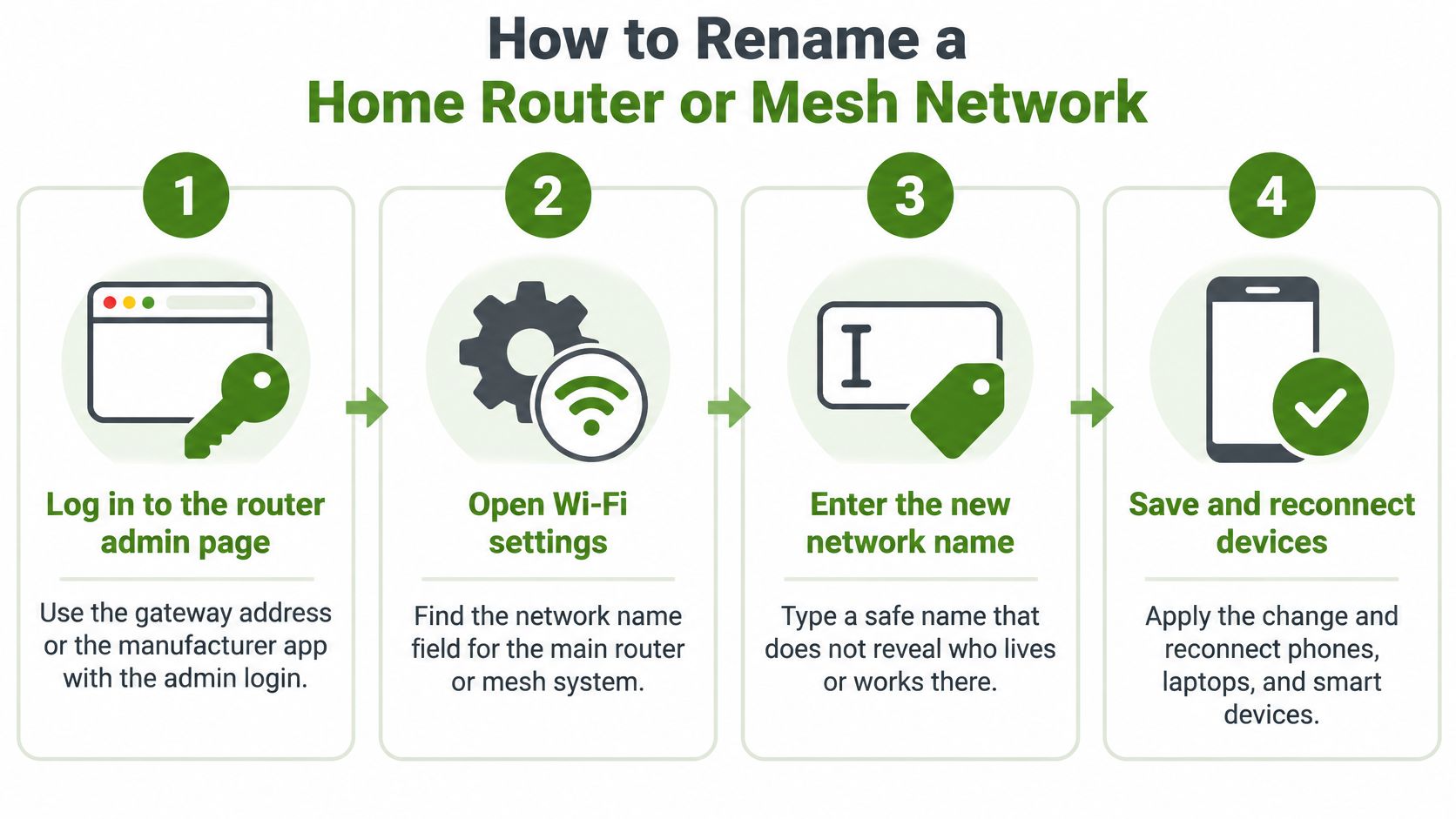
How to Rename a Home Router or Mesh Network
Make the change when nobody needs an uninterrupted video call, payment terminal or file transfer. Have the new name and existing password available somewhere other than a webpage that might disappear when Wi-Fi disconnects.
The sequence below applies to most consumer routers and mesh systems. Menu labels differ, but you're looking for the main wireless network's SSID, not the router's device nickname.
Apply the change from the controlling account
Log in to the router or mesh system. Open the gateway's administration page using the gateway information in your device's network details, or use the manufacturer's app. Enter the administrator credentials established during installation, not automatically the password you use to join Wi-Fi.
Open Wireless, Wi-Fi or Network settings and locate the network-name field, usually labelled SSID. If separate wireless bands have separate names, establish which field serves the devices you intend to move before editing anything.
Enter the neutral replacement name. Leave the Wi-Fi password unchanged unless replacing it is part of your plan. Check spelling, spacing and capitalisation before saving so you don't have to repeat the process.
Save or apply the configuration and allow the wireless service to restart. Your browser or app may disconnect while this happens, so don't immediately assume the router has failed or press its factory-reset button.
Reconnect the phone or laptop used to make the change. Select the new name explicitly, enter the password and open a webpage to confirm you've restored the connection.
Changing a default SSID has a practical privacy benefit: the Canadian Centre for Cyber Security's Wi-Fi security publication explains that it can make the router's manufacturer and model harder for nearby people to identify, limiting clues about known vulnerabilities.
Keep mesh nodes under the same configuration
For systems such as Google Nest Wifi, eero or TP-Link Deco, make the network name change through the system's controlling app. Don't try to rename individual mesh nodes as though they were unrelated routers. A node's room label is also different from the SSID devices join.
If an old wireless name remains visible, check whether it belongs to the ISP gateway or a separate extender. Don't delete configurations blindly. An independent extender may need its uplink updated after the main network changes.
Save the configuration once, then verify the result. Repeated edits while equipment is reconnecting make faults harder to isolate.
For a setup with an ISP gateway, separate access points or unclear settings, professional router configuration can help establish which device should control Wi-Fi.
Finally, confirm the replacement name appears on another device and test normal streaming and video calls. If television playback remains unreliable despite a successful rename, WATCHING FORCES offers a separate guide to improve IPTV streaming over mesh Wi-Fi. Treat coverage and streaming performance as separate troubleshooting jobs, not benefits that a new SSID automatically delivers.
Setting Up a Guest Network Separately from Your Main Wi-Fi
Only 17% of Canadians reported using a guest network for smart devices and visitors in the Get Cyber Safe program's awareness-tracking findings. That's a useful reason to consider access separation while you're already adjusting wireless settings.
Keep the main connection for trusted laptops, phones and work equipment. Use the guest connection for visitors and suitable smart devices, provided those devices don't require access to equipment on your main network.

Enable separation, not just another label
- Enable guest Wi-Fi. Open the router's guest-network settings and turn on the wireless guest connection.
- Choose a neutral guest name. Make it recognisably different from your main SSID without identifying the household or business.
- Set a separate password. Don't reuse the main network's credentials.
- Disable local access. Leave options such as access to the local network, intranet or local devices switched off.
A separate name without isolation can still allow visitors to reach local resources. Check what the guest controls permit, especially if your router offers separate options for reaching the main network and communicating with other guest devices.
Decide which smart devices belong there
Say a home office moves a smart thermostat to the guest connection while leaving the work laptop and printer on the main network. That arrangement can work well when the thermostat's app controls it through an internet service.
A smart speaker, camera or casting device may behave differently. If it relies on local discovery, moving it behind guest isolation can prevent the phone on your main network from finding it. Confirm the device's connection requirements rather than weakening isolation to clear an app error.
A planned guest Wi-Fi setup should account for those exceptions. Equipment that needs local access may belong on a more carefully configured network instead of a basic guest connection.
Test the result with a visitor's device connected to guest Wi-Fi. Confirm that internet access works but the device can't reach the office printer or a known shared resource on the work laptop. Also confirm your intended smart-device controls still function.
Handling Windows, Mac and Phone Hotspot Names
Windows and macOS don't control the broadcast name of a router's Wi-Fi network. Forgetting and rejoining replaces the saved connection on that computer; it doesn't rename the wireless network for anyone else.
This distinction matters when a computer keeps showing the old name after the router has changed. You need to join the replacement network, not edit the computer's own device name.
Windows and Mac saved connections
On Windows, open Settings > Network & Internet > Wi-Fi > Manage known networks. Select the old SSID and choose Forget, then return to the available-network list and join the new name using the correct password.
On a Mac, open System Settings > Wi-Fi and select the relevant network's details or its entry in the known-networks controls. Choose Forget This Network, then select the replacement from the Wi-Fi menu and authenticate again.
- Remove the relevant profile. If several obsolete names remain, remove the ones you no longer use rather than clearing every saved workplace or travel connection.
- Respect managed settings. An office laptop may receive Wi-Fi profiles through organisational policy. Ask IT before deleting or overriding a managed connection.
- Keep wired labels separate. A Windows Ethernet connection label isn't a wireless SSID. Changing that label won't rename your router's Wi-Fi.
Phone hotspot names
On Android, open the phone's Hotspot & tethering or Mobile Hotspot settings and look for the hotspot's network-name control. The name and password are commonly presented in the same settings area.
On an iPhone, the hotspot normally uses the iPhone's device name. Change it under Settings > General > About > Name, and check Personal Hotspot for the connection password and access controls.
A hotspot network name change affects devices connected to that phone, not your home router. Renaming an iPhone also changes its device identity elsewhere, so choose a name you're comfortable seeing outside the hotspot list.
Finish by confirming the computer displays the intended network and reconnects after a restart. On a managed work laptop, persistent reversion to an old configuration needs an administrator's attention rather than repeated manual deletion.
Reconnecting Devices After the Name Changes
A security camera can stay powered while losing its connection, and a work laptop can fail without a useful error message. Check those devices before assuming the network name change is finished.
Devices that remember the old SSID generally keep looking for it. Even with an unchanged password, they need the replacement network details unless their setup system updates them automatically.
What happens to common devices after a rename
| Device | What usually happens | Fix |
|---|---|---|
| Security camera | Network recording or uploads stop; local recording may continue | Reconnect the camera in its app |
| Work laptop | Asks for a password or fails silently | Forget the old profile and join the new network |
| Printer | Loses its saved network | Repeat Wi-Fi setup from the printer panel |
| Smart thermostat | Goes offline in its app | Re-enter Wi-Fi details in the app |
| Smart speaker | Drops the connection | Rerun the setup app |
| Streaming device | Shows the old network | Select the new network in its settings |
Restore essential equipment first
Reconnect the setup phone after updating the router or mesh system. Then prioritise cameras, work equipment and anything needed for business operations before entertainment devices.
Check a camera's live view, alerts and recording destination separately. A working picture doesn't necessarily confirm that cloud uploads or network-recorder storage have resumed.
For printers, run wireless setup from the control panel or the manufacturer's supported setup utility. Print a test page from the computer that needs it. If the printer reconnects but jobs remain stuck, the computer's saved printer connection may also need attention.
Verification matters: A device appearing online in an app isn't the same as its normal job working.
Thermostats may retain local temperature control while their apps report them offline. Smart speakers and streaming players should be tested with an actual command or playback session, not just a connected indicator.
Handle older devices without weakening everything
Older smart-home equipment may reject a newly selected security mode. Check its supported modes and available firmware before changing the whole network to accommodate it.
Don't factory-reset devices as your first response. That can erase schedules, integrations and other settings unrelated to Wi-Fi. For a stubborn computer, targeted laptop Wi-Fi troubleshooting is preferable to repeatedly resetting the router.
Store the final network name and password in a trusted password manager or another controlled location. Record any deliberate exceptions so the next reconnection doesn't require reconstructing the setup.
Fix Symptoms First, Then Book On-Site Help
| Symptom | Likely cause | Fix |
|---|---|---|
| Device cannot find the new name | Old profile saved or unsupported band selected | Forget the old network and check that the new name is broadcast on a supported band |
| Device joins but has no internet | Stale connection, gateway issue or authentication problem | Restart the device and re-enter credentials. Check internet service on another device |
| Smart device stays offline | Older device lacks the new security mode | Check the device's supported security modes and update its firmware if an update is available |
| Mesh nodes show the old name | Nodes haven't synchronised, or another router is broadcasting it | Confirm which device broadcasts the name; restart unsynchronised nodes individually through the mesh app |
| Frequent drops after the change | Outdated firmware, congestion or an overloaded router | Update firmware. If drops continue, arrange network troubleshooting |
Separate a device fault from a network fault
Start by checking how many devices are affected. If a phone works normally beside a laptop that won't connect, focus on the laptop's saved profile and adapter settings. If every device joins Wi-Fi but none can reach the internet, check the gateway and internet service before repeating individual device setups.
Forgetting a stale profile and restarting an affected device are reasonable first checks. Firmware updates, security-mode changes and mesh reconfiguration need more care. Save the working configuration where supported, and avoid interrupting power during an update.
A network name change doesn't normally explain a router repeatedly losing electrical power. If the outlet is dead, a breaker trips or equipment loses power independently of Wi-Fi, treat it as an electrical issue. Black Rhino Electric's guide to troubleshooting home electrical problems explains symptoms that may call for a qualified local electrician.
Know when an on-site visit makes sense
Consider on-site IT help when several devices fail, the network supports a small or medium-sized business, or you can't identify which router controls the connection. A technician can also help configure guest Wi-Fi and network security where those settings need to work alongside the existing network.
Nerds 2 You Edmonton provides on-site wireless troubleshooting, router configuration and guest Wi-Fi setup. Its small and medium business services include network security and ongoing IT support. The team also helps with devices that won't reconnect after a network name change.
Before arranging a visit, write down each affected device, its exact symptom and whether other equipment still works. Keep the router or mesh model, administrator access and a record of the settings you changed available for the technician. Don't send passwords in an ordinary enquiry message.
Nerds 2 You Edmonton offers on-site support for router configuration, guest Wi-Fi and devices that won't reconnect after a network name change. Write down which devices failed and what each one does, then visit Nerds 2 You Edmonton to arrange a home or office visit.
Discover more from Nerds 2 You
Subscribe to get the latest posts sent to your email.


