Network Monitoring Explained: Metrics, Tools and Costs
Your video call freezes, someone restarts the router, and the problem returns tomorrow because nobody recorded what happened. That's the everyday case for network monitoring. It turns guesswork about slow Wi-Fi, dropped calls and strange devices into measurements, an alert owner, a first action and a clear escalation step.
Table of Contents
- What Network Monitoring Is and Why It Matters
- Core Metrics and Alerts Worth Tracking
- Monitoring Approaches From Agents to SNMP and Flow
- Choosing On-Premises or Cloud Monitoring
- Tool Categories and What Each Costs
- How to Start Network Monitoring Step by Step
- Troubleshooting Real Alerts Before They Become Outages
- Deciding When to Call Nerds 2 You Edmonton
What Network Monitoring Is and Why It Matters

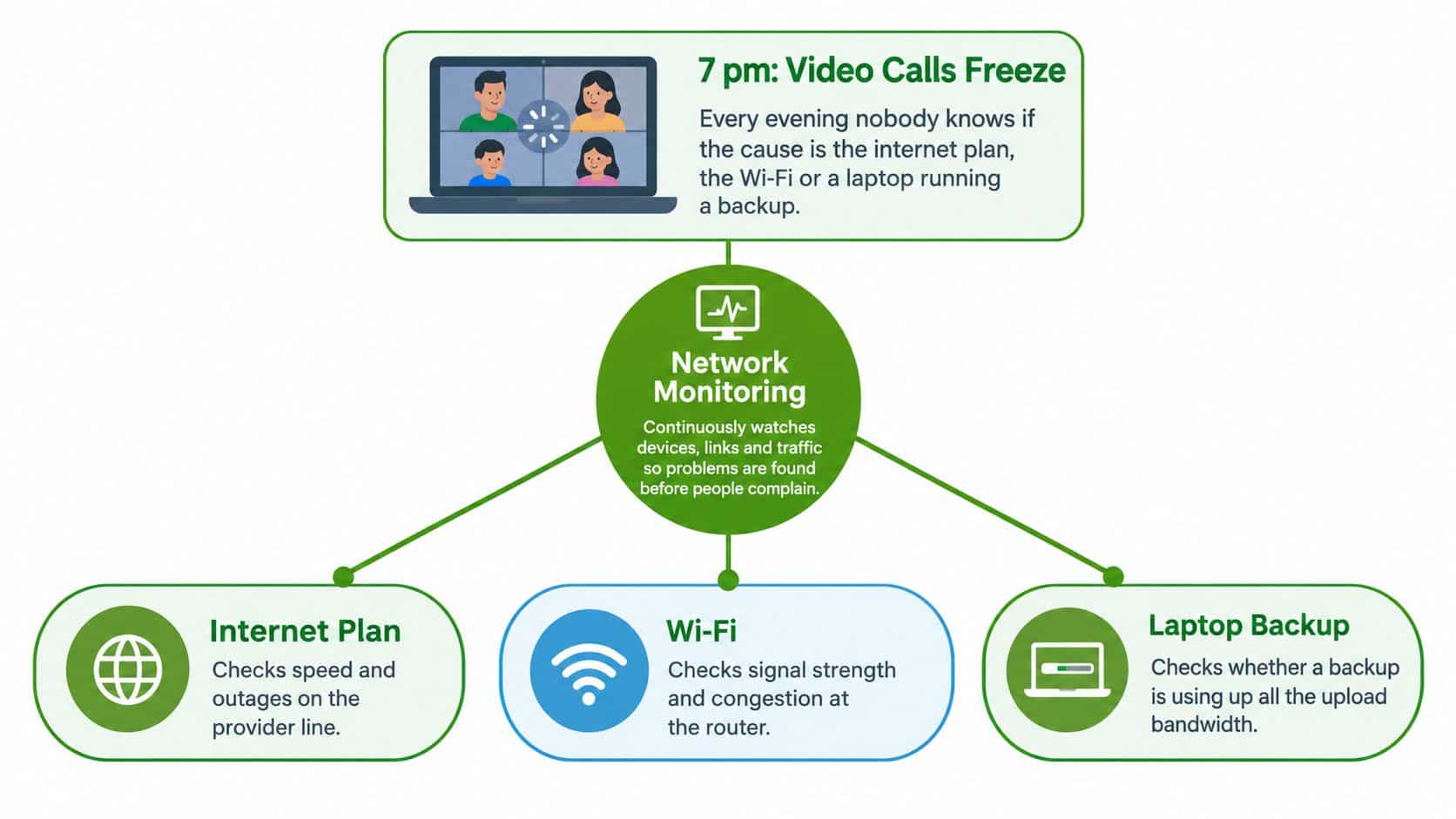
A family's video calls freeze each evening. Without measurements, they cannot tell whether the trouble comes from Wi-Fi, the router or their internet plan. Network monitoring collects and reviews information from routers, switches, servers, endpoints and cloud accounts to identify performance problems, unusual activity, known attack patterns and unauthorised access, following the Canadian Centre for Cyber Security framing of network security logging and monitoring. An endpoint is a device people use, such as a laptop or phone.
A car's dashboard offers a useful comparison. It does not repair the engine, but it shows the driver signs of trouble, such as rising temperature. Network monitoring works similarly: it helps people spot changes and decide what to check.
The Two Jobs in Plain Language
- Performance: Is the network available and steady enough for calls, files and cloud apps?
- Security: Is a device or account acting in an unusual or unauthorised way?
A household with phones, laptops, a printer, smart-home equipment and guest devices already has a small network. Each device is another door to check. The diagram illustrating how network monitoring can help investigate common internet problems, including frozen video calls shows how measurements can help narrow down a problem.
Statistics Canada reported that 46% of Canadian businesses monitored their network and business systems in 2023, according to the Auditor General report on cyber security of government networks and systems. Monitoring does not, by itself, prevent incidents. It helps staff notice relevant changes, alongside measures such as patching, access controls, backups and a response procedure.
Practical rule: Before choosing a dashboard, name the person who will read its alerts, their first action, and who they will contact if that action does not resolve the issue. More alerts without a response plan can make outcomes worse by adding noise without prompting useful action.
For the evening freeze, the router's manager can own the alert. Their first action is to check which device used the most upload bandwidth at that time. If the router and Wi-Fi readings look healthy, the manager can escalate by contacting the internet provider.
Core Metrics and Alerts Worth Tracking
Start network monitoring with ten useful signals. A baseline is what normal looks like on your own network, so record about a week of ordinary use before setting network monitoring thresholds.
| Metric | Healthy baseline | Alert trigger | What it usually signals |
|---|---|---|---|
| Latency to gateway | Under 5 ms locally | Sustained rise above baseline | Wi-Fi congestion, overloaded switch or failing cable |
| Packet loss | Near zero | Above 1% sustained for 5 minutes | Bad cabling, Wi-Fi interference or ISP line fault |
| WAN availability | Connected continuously | Any outage longer than 2 minutes | Modem, ISP or power problem |
| Bandwidth utilisation | Your one-week baseline by hour | Sustained use well above that hour's pattern | Backup, update, cloud sync or streaming surge |
| Interface errors | Near zero | Any rising count | Failing cable, port or network card |
| DHCP pool usage | Comfortable headroom remains | Pool approaching its limit | Too many devices or stale leases |
| Failed logins | A few per day | Repeated failures in a short window | Password guessing or a stale saved password |
| New or unknown device | None | Any unrecognised device | Shared guest password or rogue device |
| Outbound traffic volume | Matches the learned pattern | Sudden spike or new external destination | Possible malware or data exfiltration |
| Wi-Fi signal strength | Strong where work happens | Weak or falling signal at desks | Distance, walls or neighbouring interference |
Latency is delay, packet loss means pieces of data go missing, and the gateway is usually your router. DHCP hands out local addresses to devices. You don't need to memorise the terms if you track what each reading tells the owner to do.
Three Families of Signal
- Availability: Is it up? The owner checks power and the modem first, then escalates to the provider.
- Performance: Is it usable? The owner compares latency and utilisation with the baseline, then escalates if one device or cable explains the slowdown. A quality of service setup can then protect calls from large uploads.
- Security: Is it behaving oddly? The owner preserves the log entry first, then escalates account or device concerns before restarting anything.
Outbound traffic deserves special attention. The Canadian Centre for Cyber Security recommends monitoring outbound connection attempts and unauthorised transfers for signs of compromise or exfiltration. Learn normal destinations, ports, volumes and times of day, then alert on new external infrastructure or sustained unusual uploads.
Tune thresholds around legitimate backups, Microsoft 365, video conferencing and cloud sync. Otherwise routine traffic creates false positives, alerts that look urgent but aren't. More alerts without an owner create fatigue and can hide the one alert that matters, so every row above needs a named person, a first check and an escalation path.
Monitoring Approaches From Agents to SNMP and Flow
Network monitoring methods collect different kinds of evidence. Most small setups combine two or three rather than picking a winner.
| Approach | How it collects data | Best fit | Main limitation |
|---|---|---|---|
| Agent-based | Software on each device reports CPU, disk, process and security data | Laptops, desktops and servers | Must install and update everywhere; misses unmanaged devices |
| Agentless | Remote polling through standard protocols and credentials, no installed software | Mixed environments where agents aren't possible | Shallower detail; credentials need careful management |
| SNMP polling | Queries interface counters, CPU and status from routers, switches, printers and UPS units | Infrastructure and network hardware | Limited endpoint depth; use SNMP version 3 |
| Flow (NetFlow, sFlow, IPFIX) | Summarises who talked to whom, when and how much, without packet content | Bandwidth hogs and outbound anomalies | Needs flow-capable hardware or software; no content visibility |
| Synthetic | Scheduled probes test a website, DNS, VPN login or application from outside, every 1 to 5 minutes | User experience and external availability | Shows something's slow, not why |
| RMM (remote monitoring and management) | Agent monitoring combined with patching, scripts and ticketing | Small businesses with IT support | Usually billed per device; depends on provider processes |
Here's the analogy set. An agent is a staff member inside each room reporting back. Agentless checking is a visitor checking the doors. SNMP, short for Simple Network Management Protocol, is reading the meters on the wall. Flow is reading the phone bill to see who called whom, without hearing the conversation. Synthetic checks are a mystery shopper testing whether the service works.
Prefer SNMP version 3 where your equipment supports it. Versions 1 and 2c send community strings, which act like shared passwords, in clear text. That's a needless risk on a business network.
Why Combined Logs Reveal More
The Canadian Centre for Cyber Security approach, already linked earlier, is to collect firewall, router, VPN, endpoint, cloud and authentication events, centralise them in a SIEM, and correlate them. A SIEM, or security information and event management system, is a central logbook that connects related entries. Repeated failed logins followed by a successful VPN connection only becomes visible when those logs sit together.
For a small business, the practical combination is usually SNMP for infrastructure, flow for traffic, an agent or RMM for endpoints and synthetic checks for user experience. A full SIEM is generally a larger-business tool. Whatever you choose, write down who reviews each alert type, their first action, and when they escalate. A method nobody watches is only storage, not network monitoring.
Choosing On-Premises or Cloud Monitoring
On-premises monitoring is a collector box in your office closet that keeps data local. Cloud monitoring is a hosted dashboard that small on-site collectors report to over the internet. Neither is automatically safer or cheaper. The right choice depends on who'll maintain it and where your logs may live.

Trade-Offs at a Glance
- On-premises strengths: Data stays in-house and alerts still log during an internet outage.
- On-premises costs: There's hardware to patch, plus an upfront purchase and someone responsible for updates.
- Cloud strengths: You get visibility from a phone and no server to maintain.
- Cloud costs: There's a recurring subscription, and live alerts depend on internet access unless a local collector buffers data.
Hybrid designs are common. A local collector keeps recording during outages, while a cloud dashboard gives the owner convenient access.
Verdicts by Situation
- Single household: The router's own alerts or a simple cloud tool are usually enough, with one adult as alert owner.
- Small office of 10 to 30 people with no in-house IT: Cloud-hosted monitoring with a local collector usually suits best, because maintenance doesn't fall on staff.
- Multi-site business or regulated data: Choose hybrid and confirm where logs are stored and how long they're kept.
- Server room with strict compliance rules: On-premises may be justified if someone is assigned to patch and review it.
Ask any provider three questions before you commit. Where do logs live? Who can access them? How long are they retained? If the answers are vague, your escalation plan will be vague too. Clear retention and access rules also protect privacy, because network monitoring should record the signals needed for reliability and security, not everything it technically can.
Tool Categories and What Each Costs
Network monitoring costs rise with coverage and complexity, not just with the number of charts. Start with the simplest tool that answers your actual questions.

| Category | What it covers | Indicative cost (CAD) | Best suited to |
|---|---|---|---|
| Router and mesh app alerts | Device list, speed tests, basic outage and new-device alerts | Included with equipment | Single household network |
| Open-source dashboards on SNMP and flow data | Graphs, uptime checks, interface and flow analysis | Hardware and setup time, no licence fee | Technically confident SMBs and home labs |
| Hosted RMM and monitoring platforms | Agents on endpoints, alerts, patching and ticketing | About $3 to $10 per device per month | Small businesses with 10 or more devices and outside IT support |
| Commercial traffic analysers | Deep flow analysis, topology maps and performance history | Quote-based, often several thousand dollars a year | Multi-site businesses with dedicated IT staff |
| SIEM and log platforms | Centralised logs, event correlation and retention | Quote-based, often thousands a year | Organisations with security staff or compliance duties |
These figures are indicative for 2026 and should be checked at purchase. Open-source software isn't free in any real sense if nobody counts the spare computer, setup time and ongoing updates. Hosted per-device pricing is easier to predict, which is why many owners compare it while reviewing what small business IT support costs.
A Simple Return-on-Investment Check
Multiply annual outage hours by the cost per hour of lost work, then compare that with the yearly monitoring cost. For example, ten staff at about $35 an hour losing six hours a year to network problems equals roughly $2,100 in lost productivity, before any data loss. If monitoring and response cost less than one serious outage, the business case is already plausible.
A free router app may be enough for a household. A business should ask a harder question: who acts on the alert, what's their first step, and who takes over after hours? Paying for more alerts without those answers doesn't improve the return.
How to Start Network Monitoring Step by Step
A home office can lose its connection in the middle of a call, while a business might discover too late that a file server has stopped responding. Network monitoring helps spot these problems early, but it works only when someone knows what each alert means and what to do next. Start with a short inventory, then build a routine for checking and acting on the signals.

- Inventory every device. Record routers, switches, access points, servers, computers, phones, printers, and smart-home gear, along with each device's owner and purpose. A forgotten smart device is like an unlabelled key: you may not know what it opens until there is a problem.
- Separate networks. Put work devices on their own network or VLAN, a virtual network created on the same equipment. Keep guests and smart-home devices on isolated Wi-Fi. A proper business network setup helps prevent guests from sharing the work network password. The network administrator should separate the devices first, then review access if anything still crosses between networks.
- Choose the assets whose failure would hurt most. Start with three to five, such as the internet link, router, file server, backup, or email service. The designated IT contact should check availability alerts first, then escalate an unresolved outage to the person responsible for network support.
- Set the minimum necessary visibility. Track whether devices are available and performing normally, not the content people view. For small setups, keep logs for 30 to 90 days and document who can access them. The log owner should review access, then escalate any unexplained access to the security contact.
- Use existing alerts first. Enable router and cloud-account notifications, then add endpoint monitoring software, often called an agent or RMM, where needed. The account owner should check the affected device first, then escalate persistent failures to IT support.
- Record one week of baseline data. A baseline is a picture of normal activity, like noting a household's usual energy use before investigating a spike. Set thresholds using the metrics table, not an unusually busy week. The monitoring owner should compare an alert with the baseline, then escalate repeated exceptions to IT.
- Name an owner and escalation path for every alert. Specify who responds during and after business hours. The named owner should take the first action, then contact the backup responder if the issue remains unresolved. More alerts without a response plan create noise, delay action, and make outcomes worse.
- Test the alerts. Briefly disconnect the modem, confirm the notice reaches its owner, and review the results monthly. The owner should check delivery first, then escalate failed notifications to whoever manages the monitoring system.
Testing matters: the 2025 Cyber Savvy Canada research report found that only 48% of surveyed owners believed their organisation was vulnerable to a cyberattack or data breach, only 48% had implemented any cyber defence, and just 34% had tested their security measures. A planned test checks whether alerts reach the right person before a real incident does.
Monitor whether devices are healthy and behaving normally, not what people are reading. That boundary protects trust while still helping catch outages.
Troubleshooting Real Alerts Before They Become Outages
A video call freezes each evening, or the internet cuts out for half a minute. Like checking which room has a tripped breaker, start with one measurement that can confirm or rule out the likely cause. The person responsible for the network takes the first action below. If the evidence points outside the building, they escalate with timestamps and records to the ISP or account owner.
| Symptom | Likely cause | First check and actor | First action and escalation |
|---|---|---|---|
| Video calls freeze every evening | Wi-Fi channel congestion or overloaded mesh node | The network owner checks a Wi-Fi scan and per-device latency at 7 pm | Move to a less crowded channel or reposition a mesh node. If the issue remains, escalate the measurements to the internet provider or network support. |
| Internet drops for 30 to 90 seconds several times a week | Modem or ISP instability | The network owner compares outage timestamps with modem error counts | Check or replace faulty cabling. If errors continue, send the timed evidence to the ISP. |
| Speeds collapse at 2 am | Backup or cloud sync saturating upload | The person responsible for backups checks flow data by device for that hour | Move backups to off-peak hours or limit bandwidth. If no device accounts for the slowdown, escalate the records to the network administrator. |
| Unknown device appears on the list | Shared guest password or rogue device | The network owner checks the device vendor, last-seen time and DHCP lease record | Remove the device, change the Wi-Fi password and move smart-home gear to a guest network. If the device returns, escalate the case to whoever manages network security. |
| Repeated failed logins, then a success from an unfamiliar location | Password guessing or reused credentials | The account owner checks identity and VPN logs for that account | Reset the password, enable multi-factor authentication and block the source. If access continues or the account has sensitive permissions, escalate to the security lead. |
| Network drive slow only on one port | Interface errors or duplex mismatch | The network administrator checks error counters on that switch port | Replace the cable, correct the duplex setting or move the device to a clean port. If errors persist, escalate to the person responsible for the switch. |
Keep the response simple: one person checks the first measurement, makes the matching change, then escalates if the evidence points elsewhere. A restart may briefly restore service, but it can erase the pattern needed to find the cause. More alerts without a named responder and a clear next step can add noise and delay action.
Security alerts need a prompt response, too. An intrusion or unusual upload can continue while nobody checks the warning, giving it more time to affect accounts or move data. The person responsible for the account or security reviews the relevant logs first, then resets credentials or blocks access when the evidence supports it. If suspicious activity continues, escalate to the security lead or service provider.
Before restarting anything, preserve logs, the device list and screenshots. These records help the next person understand what happened and whether the same issue returns.
Deciding When to Call Nerds 2 You Edmonton
Your home Wi-Fi drops during video calls, or office staff keep reporting slow connections. If the cause may be cabling, Wi-Fi placement or how devices are separated, an on-site assessment can help identify what needs attention. Nerds 2 You Edmonton visits homes and offices for network planning, troubleshooting and support. For information about its network service and support, review the available services and ask whether remote monitoring fits your needs. On-site visits do not, by themselves, establish what remote monitoring or ongoing management is included. Clarify the scope before arranging service. Businesses comparing provider operating models can also review how providers build a managed services operations model.
On-site work includes setting up and troubleshooting wired and wireless networks, configuring guest Wi-Fi, separating work and personal devices, and repairing many major hardware issues. Board-level repairs are excluded, so a failed router or switch board is generally replaced rather than repaired.
Signs a Call Makes Sense
- New space: Ask for help planning the network before moving in. The technician can assess where equipment and Wi-Fi access should go.
- Ownerless alerts: Assign an alert owner first. That person should check the affected device or connection, then escalate recurring alerts for support.
- Growth without IT staff: If your business has more than about 10 staff and no in-house IT person, clarify who will monitor alerts and respond.
- Costly slowdowns: Compare the time lost to slowdowns with the cost of monitoring, then discuss what support covers.
- Wi-Fi redesign: If coverage, roaming or guest access needs rethinking, request an assessment rather than repeatedly restarting equipment.
For a home, a single visit may be enough. A small business may need setup and an agreed plan for ongoing monitoring. Before contacting a technician, list your devices and record recent outages and alerts. This gives the technician useful evidence to begin with. Confirm service availability and hours when booking.
If your Edmonton home office or small business needs an on-site network assessment, prepare your device list and recent outage notes, then contact Nerds 2 You Edmonton to discuss the next step. Agree on who will receive each alert, what they should check first and when unresolved issues should be escalated, because more alerts without a response plan can make outcomes worse.
Discover more from Nerds 2 You
Subscribe to get the latest posts sent to your email.