
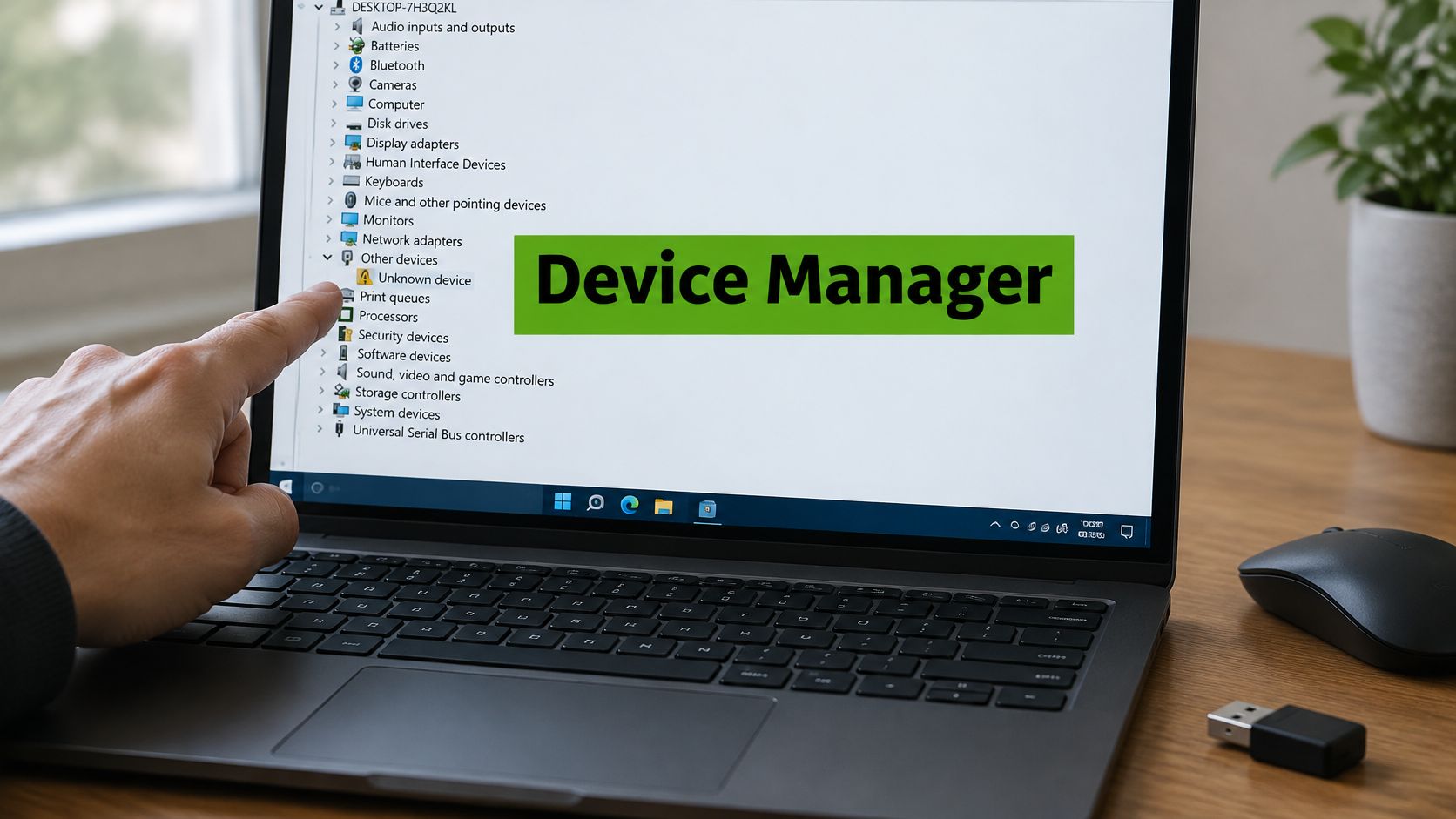
What Is Device Manager and How to Use It
Device Manager, the utility people look up when they ask what is device manager, is Windows' built-in list of detected hardware, each device's status, and its driver. It does not repair physical parts.
So why do so many guides treat Update driver as the whole repair? A newer file is not automatically a safer one, and a blocked driver can mean Windows is refusing a risky package rather than proving that a card or port has died.
Say you sit down in an Edmonton home office and the Wi-Fi icon is gone after a weekend away. The screen still lights up and the keyboard still types. Before you buy another adapter, you want a status and trust check. That is what this window is for.
What Is Device Manager on a Windows PC
Picture a small office on the north side where the laptop joins the meeting, then drops the camera and the printer in the same afternoon. You open Device Manager and you are looking at a building directory, not a workshop. The list says which room is occupied and whether the door opens. It does not rebuild a broken elevator.
Microsoft describes Device Manager as the built-in administrative utility that shows each device's type, status, manufacturer, properties, and installed driver. On a home or office PC that usually means the display, the Wi-Fi or Ethernet adapter, the keyboard, the mouse, the printer, the camera, Bluetooth, the storage controller, and the USB devices hanging off a dock.
A driver is the software that lets Windows talk to a part. Working hardware can look dead until a compatible driver is installed. The same window will not solder a trace, replace a cracked panel, or revive a worn battery.
Microsoft's practical jobs for this tool are to install or update a driver, change a hardware setting, and troubleshoot a device that will not start. The Properties window is where the useful detail lives. General shows the error. Driver shows the provider, version, and date. Details shows hardware identifiers. Events shows what Windows logged.

What the list can and cannot settle
A failed network adapter, a bad graphics driver, or a confused USB controller can look like a broad speed or connectivity problem. The directory helps you separate a software mismatch from a part that has failed.
| Question | What Device Manager shows | What it does not prove |
|---|---|---|
| Is the Wi-Fi adapter seen? | Device name, status and driver | Whether the antenna or card is physically failed |
| Why is the screen blank or glitchy? | Display adapter status and driver | A cracked panel, bad cable or dead backlight |
| Is a USB device missing? | Present, disabled, or warning icon | A worn port or failed peripheral |
| Did a printer or camera vanish? | Class, manufacturer and error status | A cable, power or firmware fault outside Windows |
| Is storage healthy? | Controller presence and driver | Drive failure, bad sectors or lost files |
Practical rule: Read the status before you buy a replacement. A missing entry is a clue, not a receipt for a new part.
Once you can tell a driver problem from a physical one, the next move is opening the window the same way every time and writing down what you see.
How to Open Device Manager and Read It
Need a quick way to check whether Windows recognizes a device? Open Device Manager and read its status before changing drivers. You can open the window without an administrator account, though Windows may ask for permission when you make certain changes.
- Select Start, type Device Manager, and open the result.
- If search does not find it, type
mmc devmgmt.mscin Windows search and press Enter. - On Windows 10 or 11, right-click Start and select Device Manager if it appears in the menu.

What the icons are telling you
The computer name appears at the top. Expand categories such as Display adapters, Network adapters, Sound, video and game controllers, Human Interface Devices, or Universal Serial Bus controllers to find a device.
An entry without an extra icon means Windows is not currently reporting a problem with it. A yellow triangle marks a reported issue, while a down arrow indicates that the device is disabled. An unknown device may need a compatible driver; its presence alone does not mean the computer needs replacing.
Open Properties to inspect the entry. On General, note the device name and status. On Driver, record the provider, version, and date before choosing Update, Roll Back, Disable, or Uninstall. On Details, select Hardware Ids. Microsoft defines a hardware ID as a vendor string that helps identify a device. The first ID listed is the most exact match for its make, model, and revision.
A driver shown here is not automatically the newest or best choice. Device Manager is a status and trust check, not a universal driver updater. A correctly signed, compatible driver can be a better choice than a newer file, and a blocked driver may reflect a security control rather than a failed part.
Use View, then Show hidden devices, if you need to find an adapter that has been removed. A greyed-out entry can refer to hardware that is no longer connected, so do not uninstall it just because it looks old.
Write down the device name, provider, version, and date before choosing one task. Clicking several controls at once can turn a small Wi-Fi problem into a machine that will not start properly.
If an adapter appears but no networks show up, follow steps to resolve Wi-Fi driver detection issues before trying random downloads. For a frozen app or stuck process, Task Manager monitors programs rather than hardware status.
Safe Driver Tasks and When to Use Them
Update driver is not the universal fix. Microsoft says Windows Update handles most hardware-driver updates, while Device Manager can run an automatic or a manual search. The right signed, compatible driver beats the newest file from a random page.
Beginning with Windows 10 version 2004, Device Manager searches the PC first. If nothing local fits, it offers Windows Update, and optional drivers sit under Optional updates. Windows 10 version 1909 and earlier could pull a higher-ranked driver from Windows Update more directly when you chose Update driver. You can still see “the best drivers are already installed” when a newer manufacturer package exists elsewhere.
| Source | Best for | Limit |
|---|---|---|
| Windows Update | Everyday signed driver updates | May not list every optional or vendor package |
| Device Manager search | One device, local packages, then a Windows Update prompt | Can report that the best driver is already installed |
| Optional updates | Manually offered drivers | Easy to miss if you only check the main update list |
| Manufacturer support page | Graphics, chipset, docks, printers and cameras | Must match the exact model; third-party driver sites are unsafe |
| Roll back in Device Manager | A problem that began after a recent driver | Rollback is unavailable once no previous package remains |
A calm order of work
- Record the device name, provider, version, date, and any error before you change anything.
- Install ordinary updates in Windows Update, then restart.
- Use Update driver on one problem device only. Try the automatic search before Browse my computer.
- If trouble started right after an update, open the Driver tab and choose Roll Back Driver, then restart. Rollback is the safer first undo.
- Use Disable only to test a conflicting device, and enable it again when the test is done.
- Uninstall only a corrupted driver that is not required to boot. If a box offers to delete the driver software, leave it cleared unless you already have a replacement from the PC maker.
- Right-click the computer name, choose Scan for hardware changes, or restart so Windows redetects the part.
Get laptop chipset, graphics, dock, and printer packages only from the PC or device maker. Firmware and vendor utilities live outside this window, so a driver rollback will not update a dock's firmware. Disabling a boot device can stop Windows from starting.
Before any driver change, create a restore point. If the change touches storage, confirm you can reach your BitLocker recovery key. Keep the previous driver package until the device is confirmed working. A fuller walk-through of ordinary update paths sits in this guide to updating drivers on Windows.
Newest is not the goal. A correct, signed, compatible driver is.
Device Manager Error Codes Explained
A yellow triangle with an exclamation mark means Windows stored a problem code, not a vague warning. Open the device, choose Properties, and read Device status. Microsoft's error table maps those numbers to configuration-manager states, so one icon can mean several different faults.
| Code | Meaning | First action |
|---|---|---|
| Code 1 | Device is not configured | Check the driver, then scan for hardware changes |
| Code 3 | Insufficient memory | Close heavy apps, restart, then recheck status |
| Code 9 | Invalid device data | Confirm the device and reinstall a matching driver |
| Code 10 | Device fails to start | Note the driver date and roll back or reinstall |
| Code 12 | Resource conflict | Remove the clash, update the driver, restart |
| Code 18 | Driver must be reinstalled | Reinstall the matching driver and restart |
| Code 22 | Device is disabled | Enable it only if it should be in use |
| Code 24 | Device is not present | Reseat or reconnect, then scan for changes |
| Code 29 | Hardware is disabled | Check hardware switches or firmware before software |
| Code 43 | Device reported a failure, often graphics | Roll back the recent display driver |
Code 1 and Code 18 point to setup or a reinstall. Code 10 and Code 43 mean the device failed to start. Code 12 is a resource clash. Code 22 and Code 29 mean something is turned off in software or in hardware. Code 24 means Windows no longer sees the part. Code 3 and Code 9 are less common, but they still are not “buy a new PC.”
Two devices, two different first moves
Say the Wi-Fi adapter shows Code 10 after a travel weekend. Note the driver date first. If that date matches the trip, roll the driver back, restart, then scan for hardware changes. Do not jump to a USB Wi-Fi dongle while the internal adapter is still only misconfigured.
A display with Code 43 is a different story. Microsoft's graphics guidance says to open the Driver tab and use Roll Back Driver before you delete the graphics package. If you do uninstall, right-click the computer name and choose Scan for hardware changes so Windows can reinstall a driver. Keep the code, the device name, and the driver date.
If the same code returns after a clean install from the manufacturer, stop repeating uninstalls. The pattern now points to the part, the cable, the dock, or the port. Boot-critical storage or chipset failures are stricter still. An installation problem on those devices can stop Windows from starting, so they are not a casual click-and-retry job. Repeated stop errors after a driver change belong with a blue screen fix, not another random package.
Why a Blocked Driver Is Not Always a Fault
A yellow icon is a fault report. A blocked driver is often a security decision. Windows 11 can refuse a driver known to be vulnerable, and Memory Integrity can refuse a low-level driver that would weaken protection. A dock, a USB-C adapter, an external graphics unit, or an older peripheral can vanish after a security update even though the PC itself is fine.

Microsoft explains that Memory Integrity helps stop malicious low-level drivers from hijacking a PC, and that Windows 11's vulnerable-driver blocklist can block drivers with known weaknesses or drivers that bypass security controls. The same guidance covers Kernel DMA Protection. In Device Manager, a DMA-remapping value of 0 or 1 means the driver does not support remapping. A value of 2 means it does. That matters for Thunderbolt and USB-C gear on a home-office desk, where a dock can touch memory more directly than a simple mouse.
What to do before you weaken protection
- Read the exact block or error message. Do not assume the port is dead.
- Check Windows Update and Optional updates for a replacement Microsoft already trusts.
- Check the manufacturer for a newer signed driver that matches the exact dock or adapter.
- Keep Memory Integrity on while a safe driver exists.
Turning Memory Integrity off just to revive an old unsigned driver is a poor trade, especially on a work PC that holds client files. If no signed driver exists, retire or replace the accessory rather than weaken the computer. This is not Code 22. Code 22 is an ordinary disabled device you can enable when you still want it. A block is a compatibility and trust problem, and the goal is still the correct signed driver, not the newest file from an unknown download page.
Mac Equivalents and When to Book On-Site Help
Does your Mac have a Device Manager? macOS has no direct equivalent. System Report is the closest place to check what the computer recognizes, though it does not offer Windows-style driver controls or a list of problem codes.
Open the Apple menu, choose About This Mac, then System Report. Under Hardware, check USB, Thunderbolt, storage, network, and graphics. If a peripheral is missing, see whether it appears in the relevant list, whether macOS is current, and whether its maker provides a supported driver or firmware tool. This helps you tell whether the Mac recognizes the device, but it cannot confirm that every part is working properly. For help with an Apple device, you can arrange on-site Mac repair in Edmonton.
Where the software check ends
A management screen can show what the computer detects. It cannot reseat a loose connector, replace a failed SSD, fix a cracked display, or repair a damaged charging port. Keep the device names and software versions you have already recorded, and back up important files while the drive is still visible. If repeating the same uninstall changes nothing, move on to checking the hardware or getting help.
Book on-site help when:
- The same code returns after a rollback and a driver from the manufacturer.
- A device stays missing after you reseat its cable, dock, or card.
- Storage clicks or disappears, and you still need the files.
- You notice a burning smell or liquid damage. Unplug the device and stop testing it.
- The PC will not boot, or a small office loses its network and staff cannot sign in.
Nerds 2 You serves homes and businesses in the Edmonton area with on-site computer repair and IT support. Its services include laptop and desktop diagnostics and repair, driver and software troubleshooting, and network support for small and medium-sized businesses. A technician can assess whether the problem points to a setting, driver, connection, or hardware fault, though software troubleshooting cannot repair a physically damaged part.
A status screen can show that a device is not responding. It cannot repair the hardware, so repeating the same settings check may not help.
If you have recorded the code and driver details and backed up your files, you have handled the useful software checks. The next step may be a supported signed driver, a cable or accessory check, or hardware service.
If a yellow icon, blocked dock driver, or laptop that will not start has you stuck, Nerds 2 You Edmonton offers on-site PC and Mac repair, driver troubleshooting, and small-business network support. Visit Nerds 2 You Edmonton to arrange a home or office visit.
Discover more from Nerds 2 You
Subscribe to get the latest posts sent to your email.


